
 June Wan
On Tuesday, Apple's fall event will showcase iPhone 15, Apple Watch Series 9, new AirPods, and the release of iOS 17. The latter comes with a ton of features that will optimize your iPhone experience, including Live Voicemail.
Also: Every Apple product we're expecting at its September event 2023
Apple first announced its Live Voicemail feature, its take on Google's Call Screening feature that transcribes a caller's voice message in near real-time, at WWDC 2023.
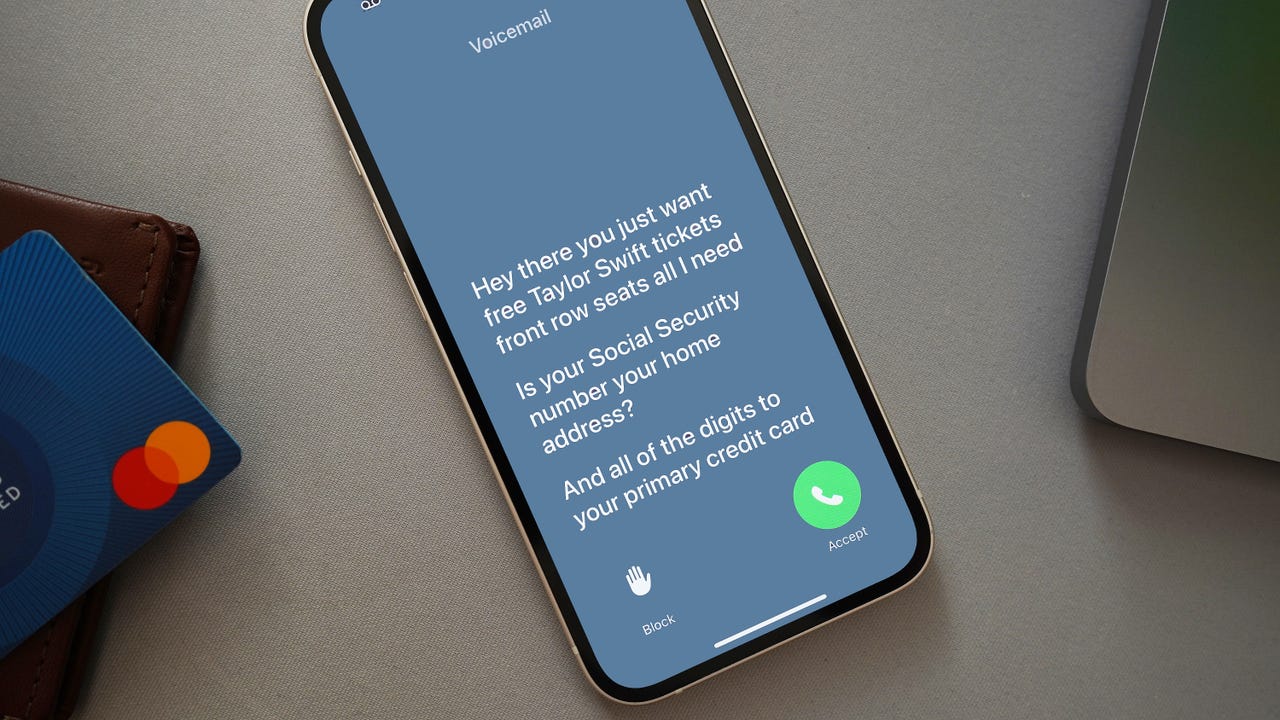
Like Call Screening, Live Voicemail transcribes phone calls on your screen, allowing you to decide whether you want to dodge, pick up the call, or even jump into the call midway if needed. Here's how to turn on and use the feature.
How to use Live Voicemail on iOS 17
1. Turning on Live Voicemail
The Live Voicemail feature will be turned on by default in iOS 17. However, if you want to turn it off, or if it wasn't on to begin with, all you need to do is go to Settings > Phone > Live Voicemail > and then toggle the switch. It's that simple.
Also: iPhone 15: Four features that make this year's Apple handsets truly matter
If the option is not available, make sure you're 1) on an iPhone model that supports iOS 17 and 2) on the latest software version.
2. Using Live Voicemail
With the feature toggled on, you're now ready to use Live Voicemail. To test, have a relative, friend, or person nearby call your phone. (You can also wait for that evitable anonymous caller ID to phone in, of course.)
When they do, and the incoming call screen appears, tap the Voicemail icon on the bottom right. At that time, the iPhone will broadcast an automated message notifying the caller that you're using the transcription service and to start speaking.
Also: I ranked the best iOS 17 features from most useful to straight gimmicky
As the caller talks, the iPhone will display a live transcription of what's being said. Should you want to respond, you can use the Message option or pick up the call.
It's worth noting that unlike Google's Call Screening feature and Samsung's Bixby Text Call, you can't respond with an AI-voiced text message with Live Voicemail, meaning you must pick up the phone if you want to respond in real time.
FAQs
What iPhone models support Live Voicemail?
All iPhones that are upgradeable to iOS 17 will support Live Voicemail. That list of compatible devices includes every model from this year's iPhone 15 to the iPhone XR. Here's the full list for your reference.
How do I turn off Live Voicemail?
You can turn off the feature from the Phone settings. Go to Settings > Phone > Live Voicemail > and toggle the switch off.
Can I use Live Voicemail for spam calls?
Spam calls detected by your carrier will automatically be declined, so Live Voicemail won't be available in most cases. However, if a call comes through and you're unsure about picking it up, you can use the feature to screen the caller first.
See also
-
How to better organize text messages on your iPhone, thanks to iOS 17
-
How to transfer data from Android to an iPhone: 2 simple and fast ways
-
How to turn on 80% charging limit on the iPhone 15 to save battery health
-
How to leave a FaceTime voice or video message when your call goes unanswered