
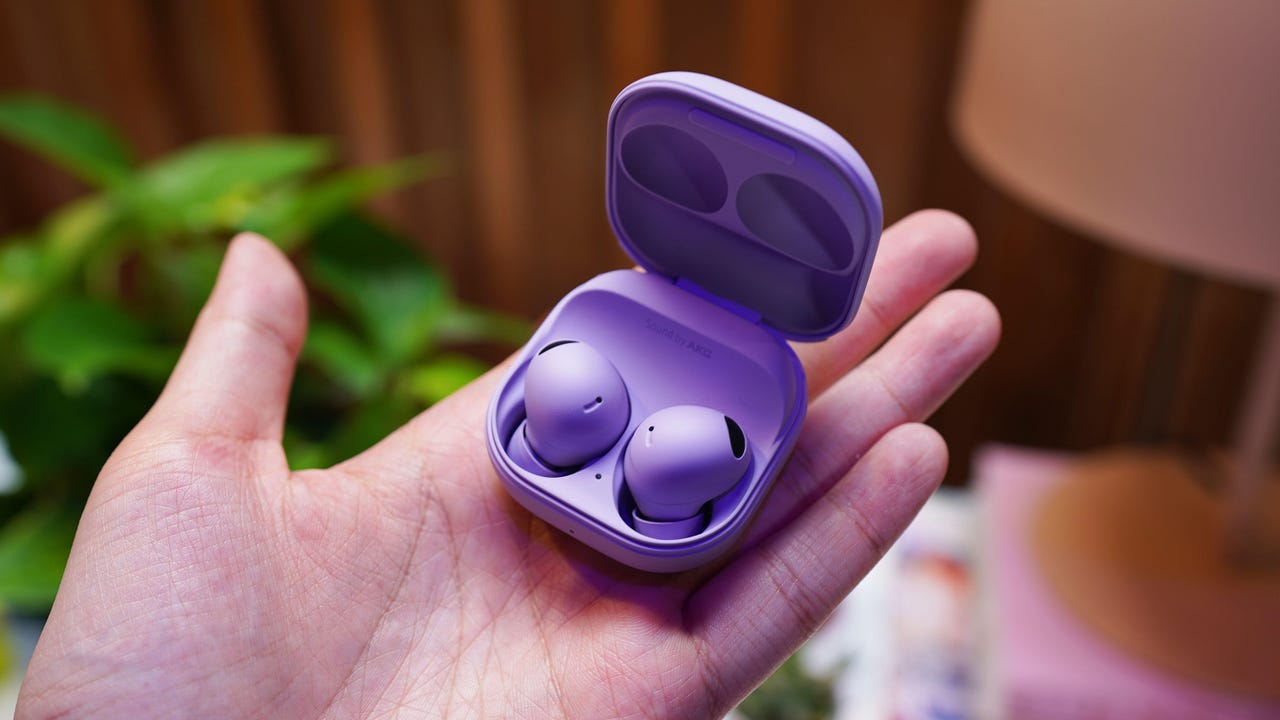
 June Wan/
Most wireless headphones have recently turned to spatial audio to produce the most immersive listening experience. In a recent software rollout, Samsung is allowing Galaxy devices running One UI 5.0 or above to record surround sound videos by leveraging the Samsung Galaxy Buds 2 Pro's built-in microphones.
See also
- Android 14's AI-generated wallpapers are super fun. Here's how to create them
- How to turn on flash notifications on Android 14 (and why you should)
- How to mirror your Android phone to a TV -- 3 easy ways
- How to enable UWB on Android (and why you should)
With the buds paired, users can capture the sound that's in front of them through their phone's microphones, along with what's happening on the left and right sides through their Galaxy Buds. The devices are basically working in harmony.
Also: Everything Samsung announced at Unpacked
So now, beyond listening to the spatial audio-enabled soundtracks on Spotify and Apple Music, users can listen to and share their own videos in the most immersive way.
How to use 360 audio recording on a Samsung Galaxy phone
Requirements
Before we get into how to enable 360 audio recording, note that there are a few hardware requirements. You'll have to meet the following:
- Have a pair of Samsung Galaxy Buds 2 Pro .
- Your Samsung phone is running One UI 5.0 or above and supports LE audio. So far only five Galaxy phones support that requirement: The Samsung Galaxy S23 , S23+ , S23 Ultra , Galaxy Z Flip 4 , and Galaxy Z Fold 4 .
1. Pair the Galaxy Buds 2 Pro with your Galaxy smartphone
Since the 360 audio recording feature is still new, it's important to make sure both your Galaxy Buds 2 Pro and Galaxy phone have the latest software update.
You can manually check for headphone updates in the Samsung wearables app. Just make sure that the earbuds are charged and placed in the charging case when doing so.
Also: Soundcore's new Liberty 4 earbuds with spatial audio can track your heart rate
You can check if your Galaxy phone has the latest update by going to its settings, tapping the "Software update" tab, and if a new update is available, you'll be prompted to "Download and install."
Once everything is up to date, pair your Galaxy Buds 2 Pro with your Galaxy phone via Bluetooth.
2. Open the camera app
Now it's time to enable 360 audio recording in your camera settings. Open the camera app and tap into the camera settings (gear icon) in the top left corner (when held in portrait orientation).
Swipe down and select "Advanced video options" in the menu. From there, toggle on "360 audio recording".
3. Start recording
Once you've toggled the 360 audio recording option and your Buds 2 Pro are in your ears, you're all set! Hit the video record button when you're ready and your Galaxy phone and earbuds should begin to capture audio together.
Also: 8 tips and tricks for the Galaxy Buds 2 Pro
To ensure that the feature is working, there should be a "360 MIC" text on the camera viewfinder. You can also run a test recording by snapping your fingers from the left to the right side of your head. Then, listen to the video to see if the audio path is discernible.
Samsung Galaxy Buds 2 Pro
$115 at SamsungFAQs
What is the Galaxy Buds 360 audio feature?
Galaxy Buds 360 audio is Samsung's take on spatial audio, which allows you to experience sound from all directions instead of just in front of you.
What is the 360 audio recording feature?
The 360 audio recording feature is a manual camera setting that allows Galaxy users with either a Samsung Galaxy Z Flip 4, Galaxy Fold 4, or Galaxy S23 model to record video while they're wearing the Galaxy Buds 2 Pro. The 360 audio recording function leverages the microphones from both the phone and earbuds for a more immersive and dynamic audio experience.
Do I need to wear Galaxy Buds 2 Pro for 360 audio recording to work?
Yes. Not to be mistaken with 360 audio listening, 360 audio recording is currently limited to the Buds 2 Pro.
Has the 360 audio recording function been rolled out yet?
Samsung started to roll out the newest feature last month, so be on the lookout and make sure your phone and earbuds are up to date.
Samsung Unpacked
-
Samsung Galaxy Z Flip 5 review: Three features I love (and two that I still wish for)
-
Samsung Galaxy Tab S9 Ultra hands-on review: Minor improvements to an already great tablet
-
How to preorder the Samsung Galaxy Z Fold 5, Flip 5, Tab S6 and more
-
Samsung Galaxy Z Fold 5 hands-on review: Three upgrades that make a notable difference
-
We tested every foldable phone on the market. These are the best models