
 Screenshot by Lance Whitney
Want to share your favorite photos or videos with another iPhone user? You can always do that through email, text message, or even AirDrop. But now there's a simpler and quicker way via a new Apple feature in iOS17 called NameDrop. Designed to wirelessly transfer contact information, NameDrop can also send photos or videos to a nearby iPhone just by placing the two phones near each other. (NameDrop does not work with iPads.) Here's how it works.
Also: The best iPhone models you can buy right now
How to share photos between two iPhones with Apple's NameDrop
1. Update your devices
To use NameDrop on an iPhone, you and the other person both need iOS 17 or higher. For this, head to Settings, select General, and then tap Software Update. You'll be told that your device is up to date or prompted to download and install the latest update.
2. Confirm NameDrop settings
With iOS 17, NameDrop is automatically turned on. But you should still check the settings to confirm that it's enabled and to adjust certain options. Go to Settings, select General, and then tap AirDrop. Make sure the switch is turned on for Bringing Devices Together.
At this screen, tap the option for Everyone for 10 Minutes if the other person is not in your contact list. Otherwise, leave the option set to Contacts Only. And if you want to try the feature over a cellular connection, be sure the switch is on for Use Cellular Data.
3. Select photos
To share photos using NameDrop, launch the Photos app on the source iPhone. Open a specific album or browse to all your photos, tap Select, and then tap the photos you wish to share.
4. Position phones
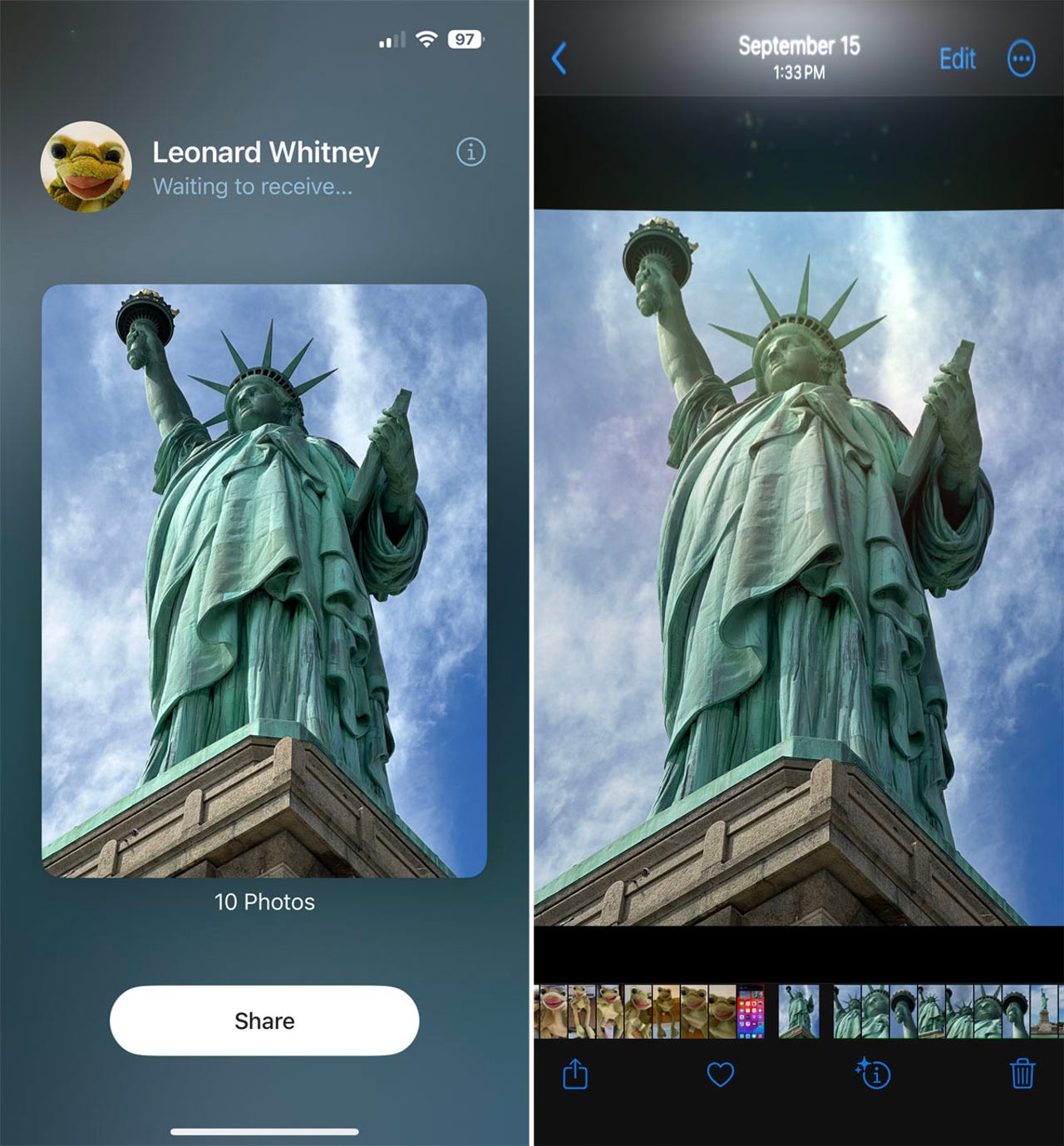
Position your phone next to the iPhone to which you want to send the photos. An AirDrop notification appears at the top of the sending phone. Both phones will start to glow to signal the connection. The receiving phone will show the name of the user of the sending phone.
5. Share the photos
Tap Share on the sending phone to send the selected photos. The photos start to appear on the receiving phone.
6. View the photos
Swipe through the shared photos in the Photos app on the receiving phone to view them all.
7. Select videos
To share videos via NameDrop, launch the Photos app on the source iPhone. Tap the Albums icon at the bottom, swipe down to the Media Types section, and then select the category for Videos. Tap Select and then tap the videos that you wish to share.
8. Position phones
Position your phone next to the iPhone to which you want to send the videos. The receiving phone shows the connection. Tap Share on the sending phone to send the selected videos. Depending on the size of the videos, you may need to tap Share for each one.
9. View the videos on the receiving phone
Open the Photos app on the receiving phone. At the My Albums screen, tap Videos. Open each of the shared videos to play them all.
More how-tos
-
7 fixes for missing Slack notifications on MacOS
-
How to use your own synthesized voice on your iPhone, iPad, Mac or Apple Watch
-
How to share Google Nest Doorbell with someone in your family
-
How to install Linux on your Raspberry Pi