
What to Know
- Block the app: Settings > Screen Time > Content & Privacy Restrictions > Content Restrictions > Apps > 9+.
- Block the site: From the Content Restrictions page, go to Web Content > Limit Adult Websites > Add Website.
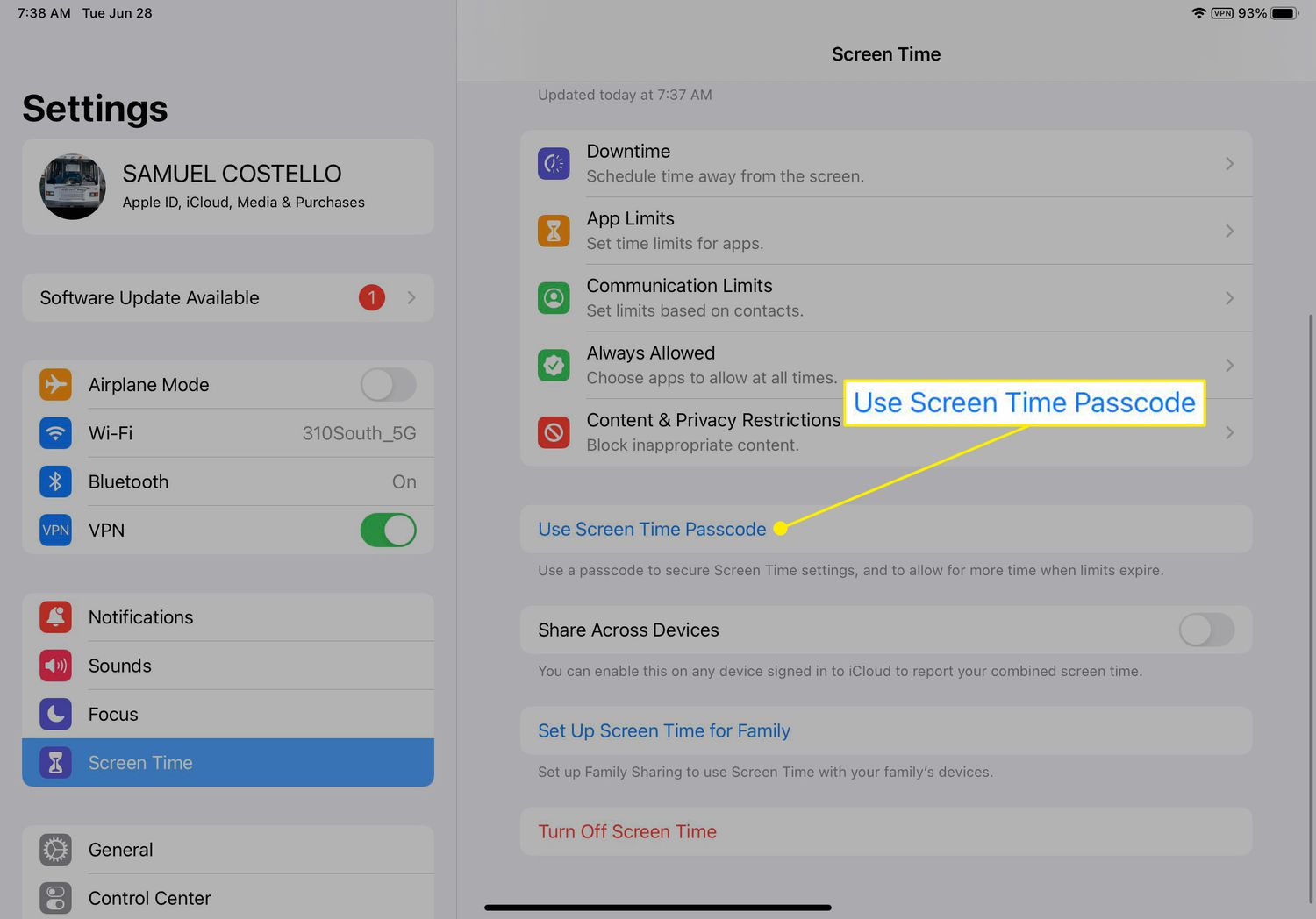
- Set up Screen Time with a passcode to prevent changes to these settings.
This article explains how to restrict YouTube on an iPad by blocking the app and website.
How to Block the YouTube App on iPad
Follow these steps to make sure the YouTube app can't be installed on an iPad or to hide the app if it's already installed:
-
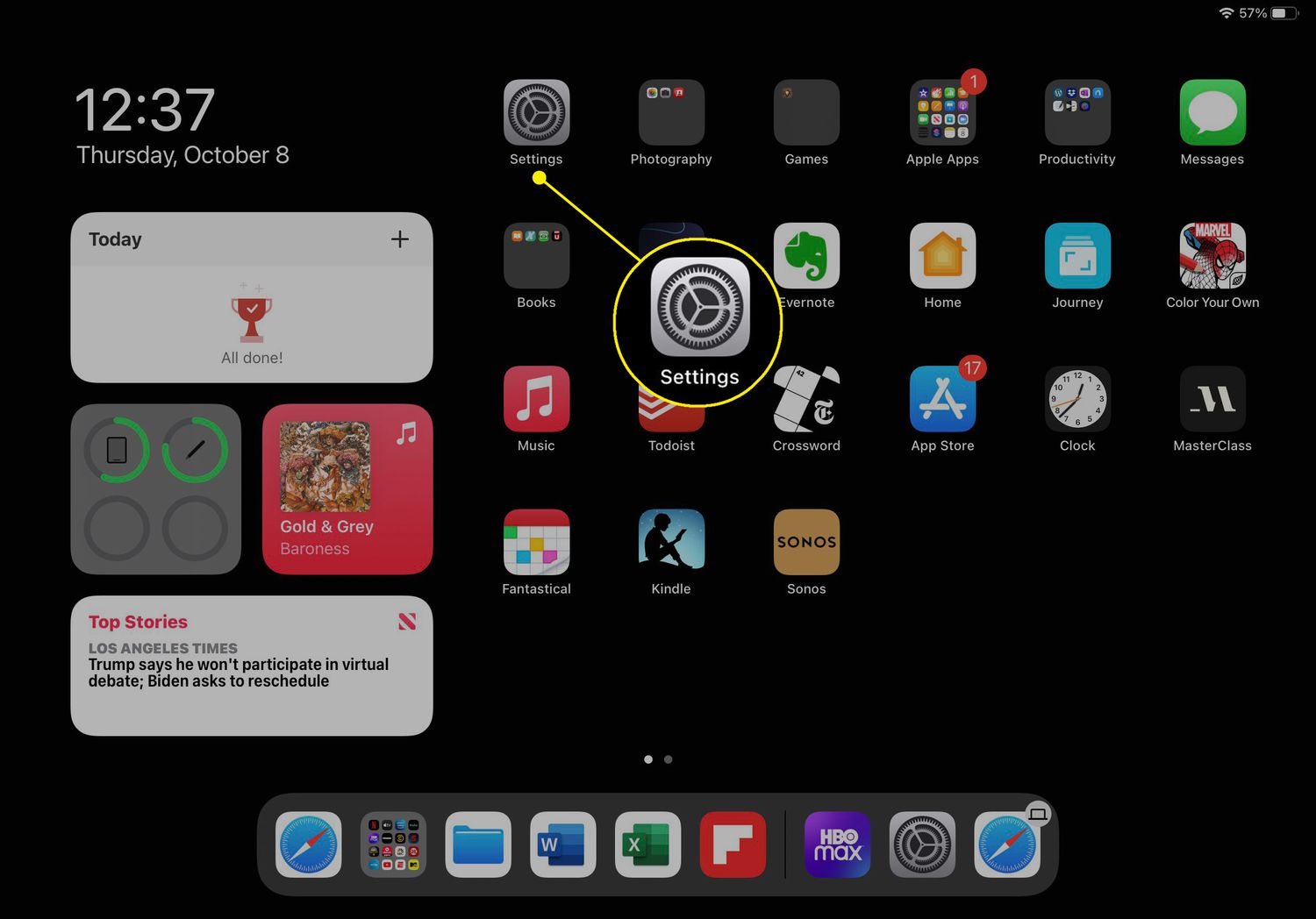
Tap Settings.
-
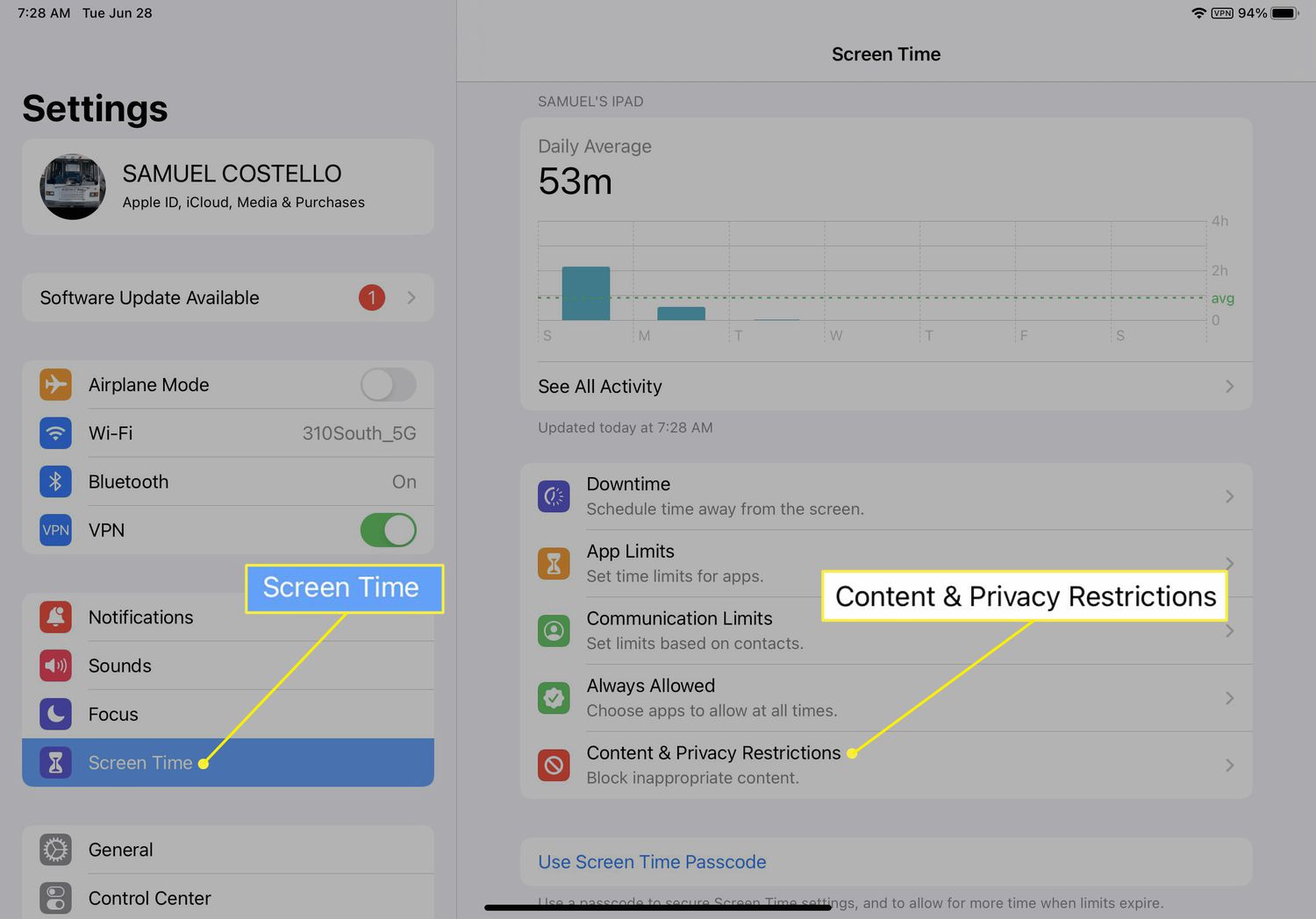
Tap Screen Time.
Screen Time tracks how much time you spend with your devices, giving you control over what you use and for how long.
-
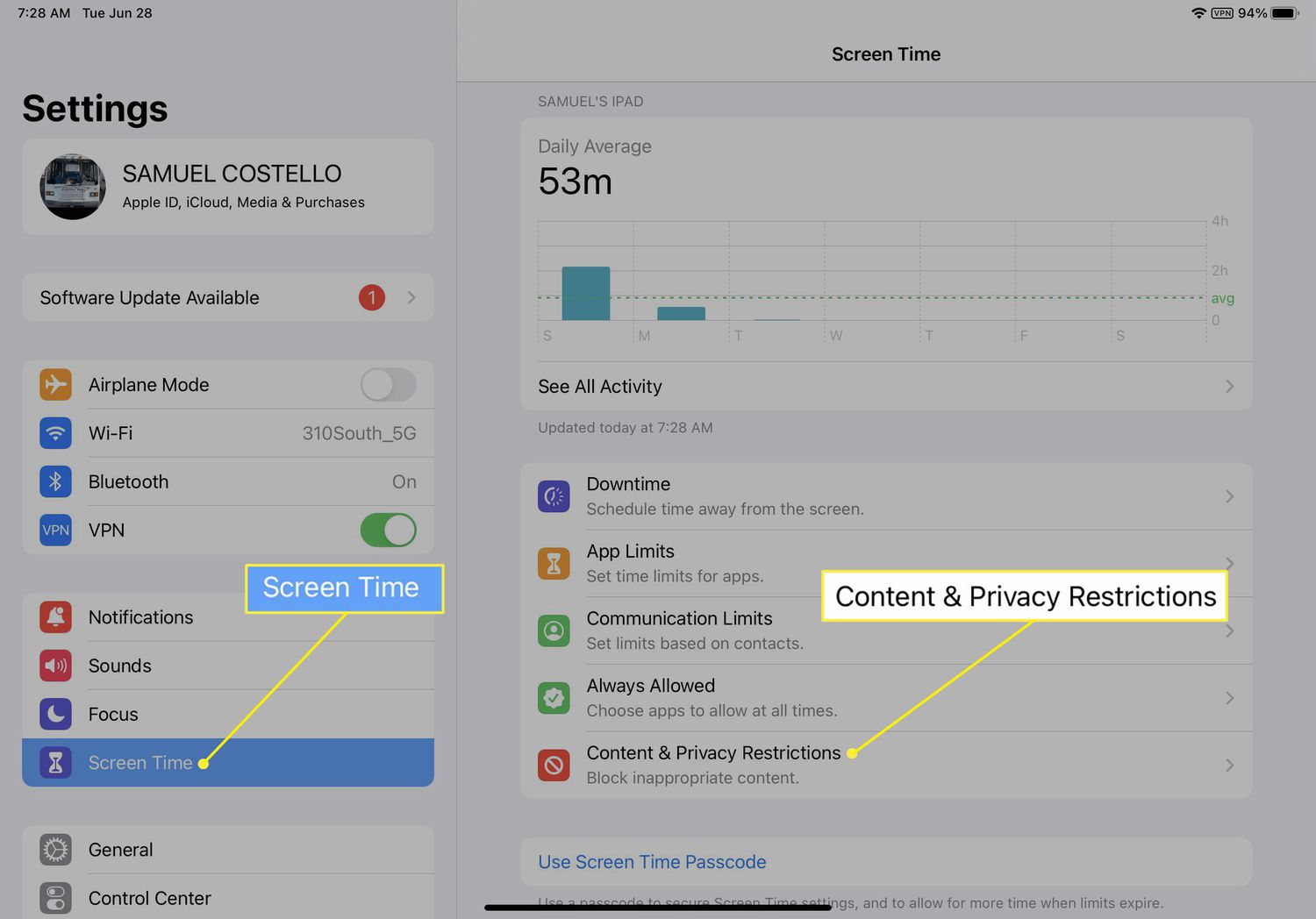
Select Content & Privacy Restrictions.
-
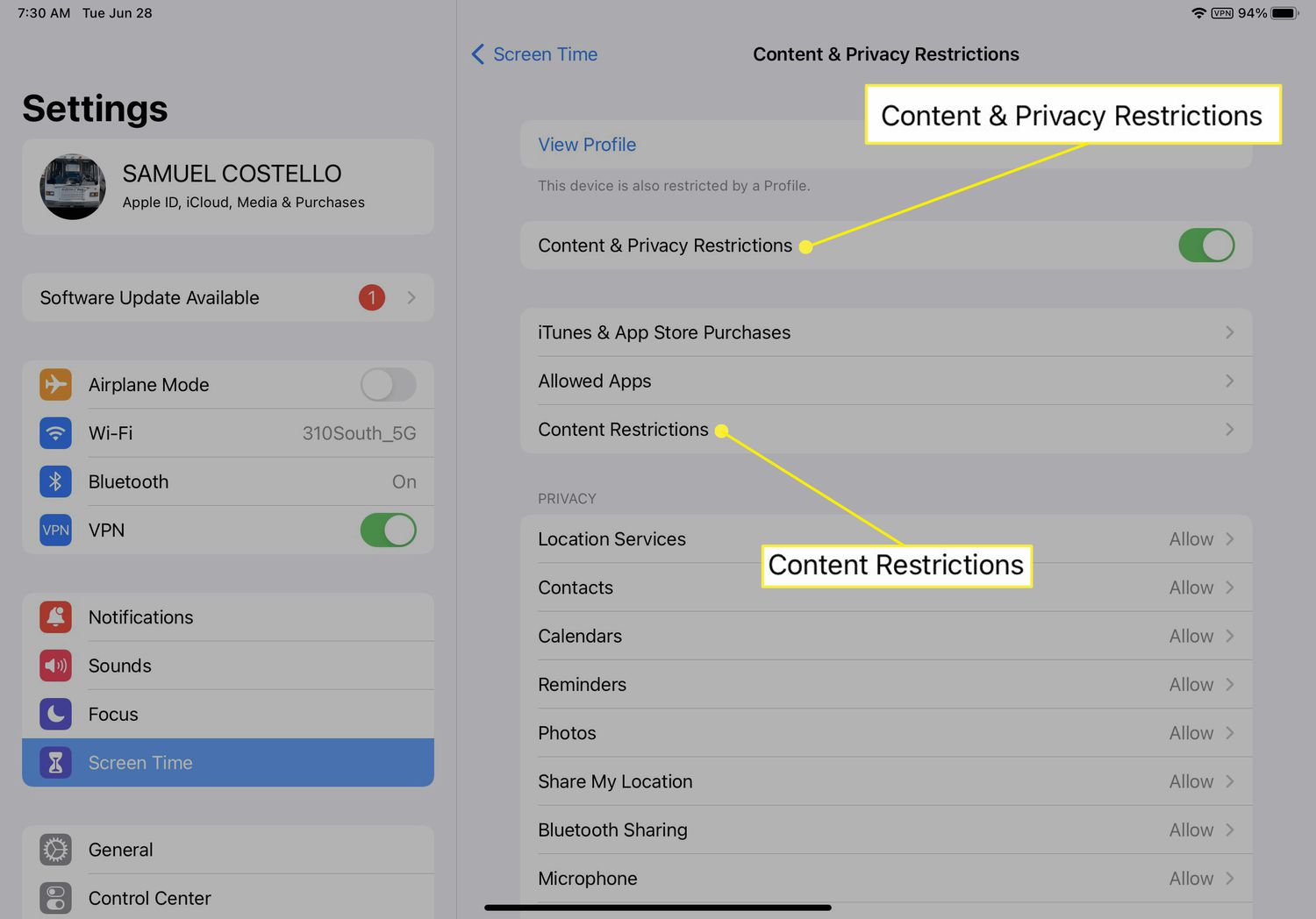
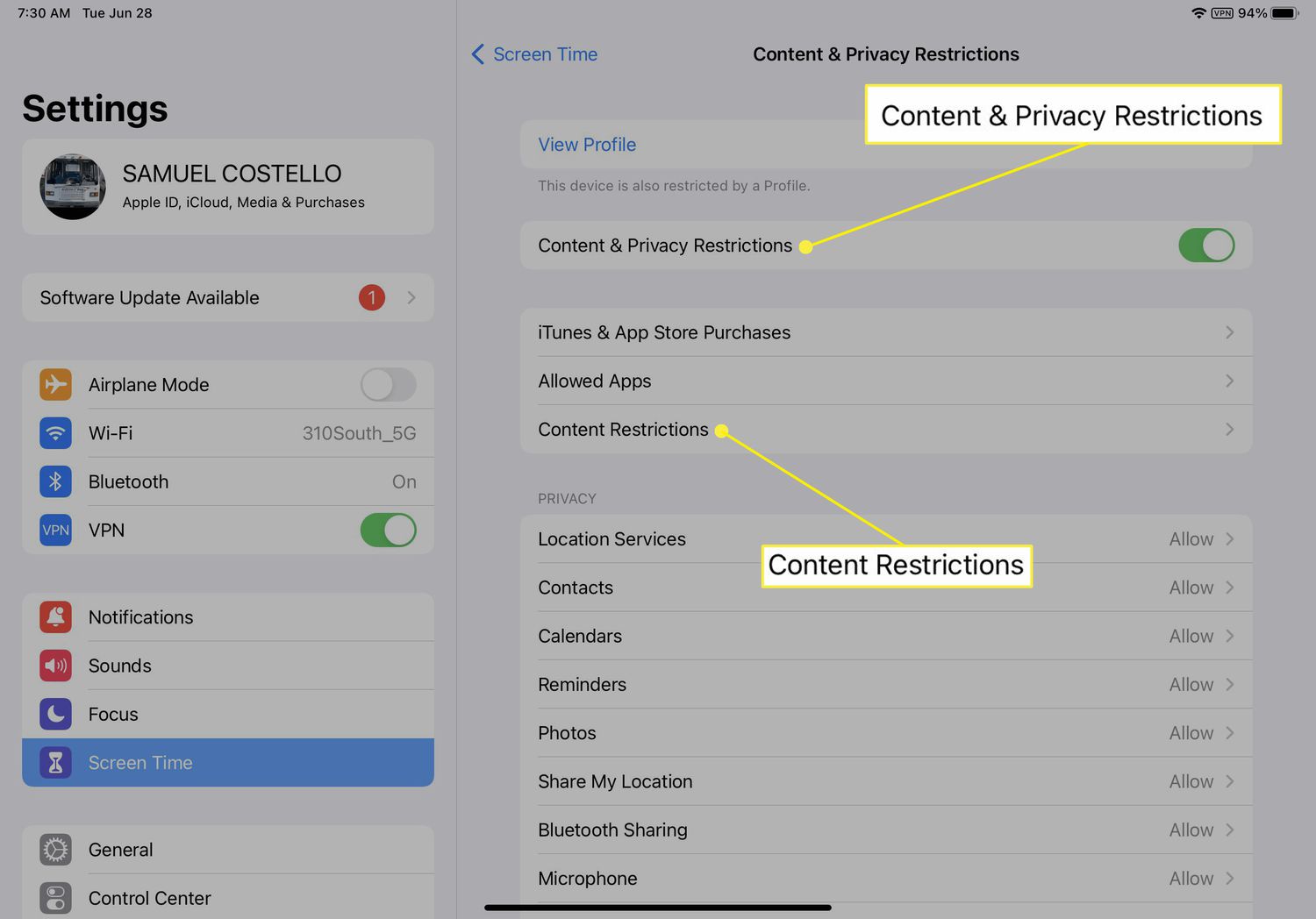
Move the Content & Privacy Restrictions slider to on/green.
-
Tap Content Restrictions.
-
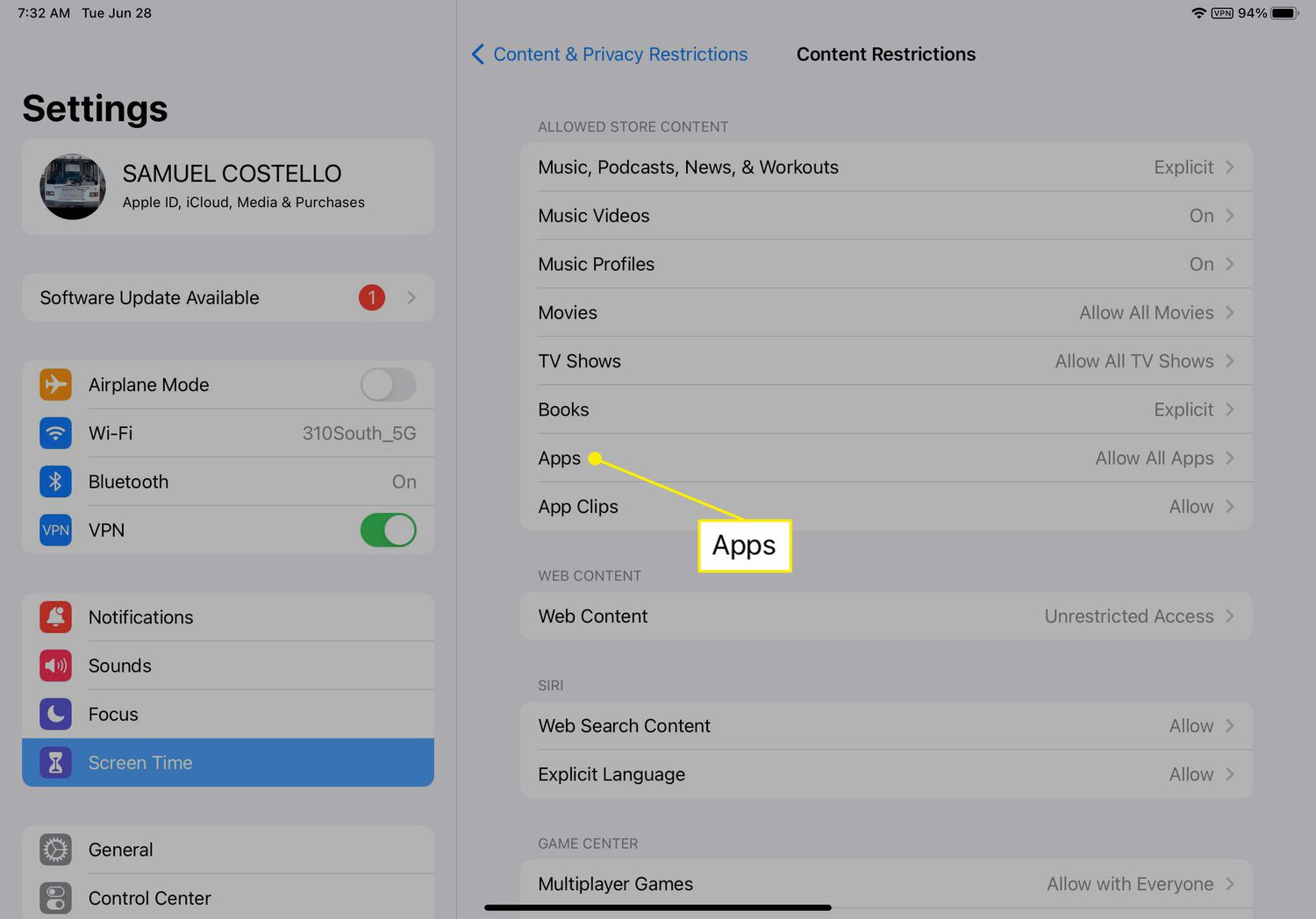
Tap Apps.
-
Tap 9+. This rating prevents apps rated for nine and over from being installed on the iPad (YouTube falls into this category). If you've already installed these apps, this setting will hide them.
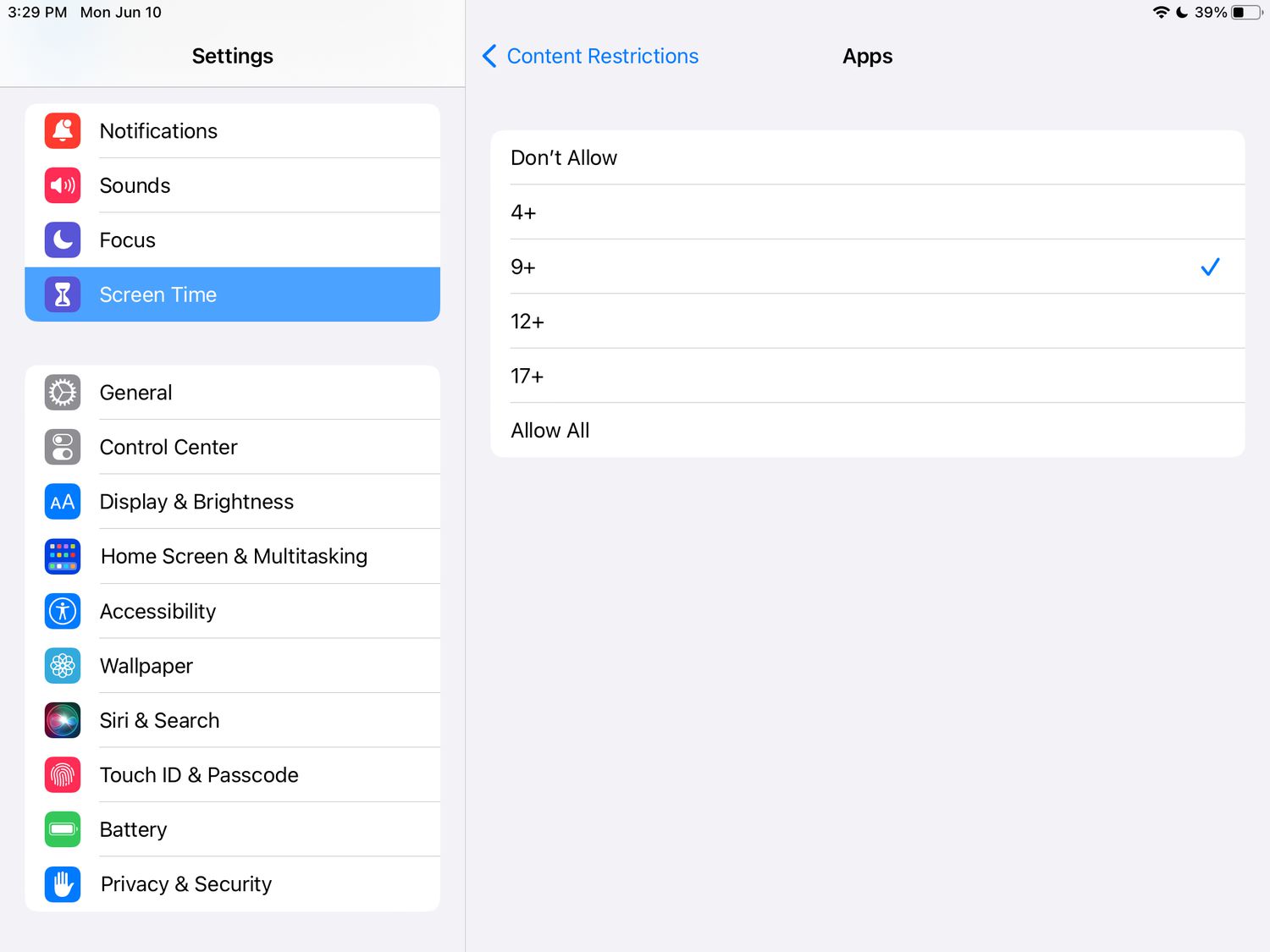
The only way to block just the YouTube app instead of everything that falls within this age rating is to set up a time limit to lock the app behind a password.
-
Using a Screen Time passcode, you can lock this setting down so the block can't be removed. Do this via Settings > Screen Time > Use Screen Time Passcode.
Pick something other people won't guess, and don't use the same passcode you use to unlock the iPad.
You can also block all third-party apps from being installed using the App Store. Go to Settings > Screen Time > Content & Privacy Restrictions > slider to on/green > Content Restrictions > Apps > Don't Allow. You may want to delete the YouTube app first.
How to Block the YouTube Website on iPad
Blocking the YouTube website is easier than blocking the app. You can block this one site and no others by following these steps:
These settings only apply to the pre-installed Safari web browser. For third-party web browsers, like Chrome, you'll need to use different approaches.
-
Open Settings to Screen Time > Content & Privacy Restrictions.
-
Tap the slider next to Content & Privacy Restrictions if it isn't already on, then tap Content Restrictions.
-
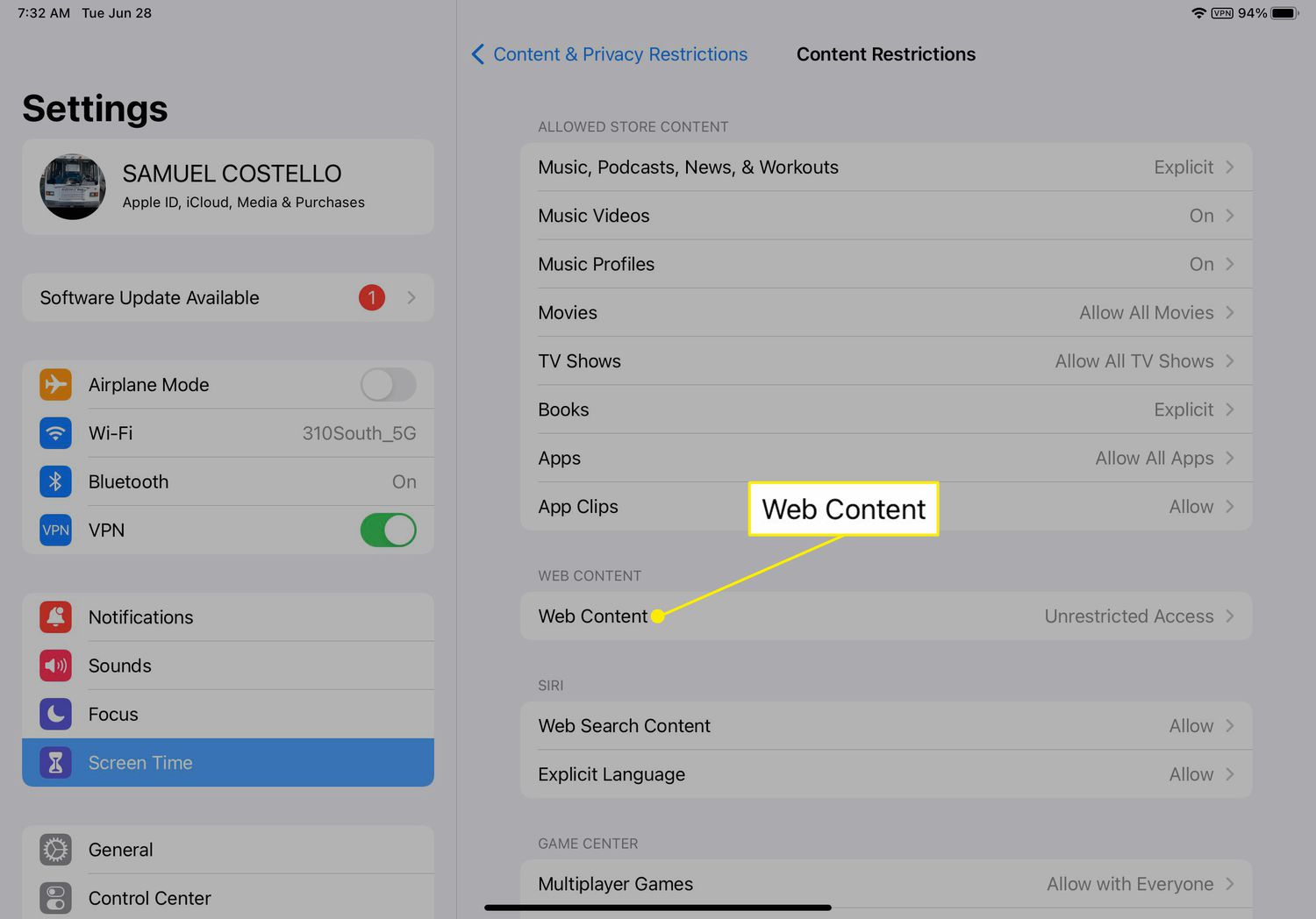
Tap Web Content.
-
Tap Limit Adult Websites. This setting blocks access to all websites categorized by Apple as being adult.
-
YouTube is not an adult site, so you must also block it separately. In the Never Allow section, tap Add Website.
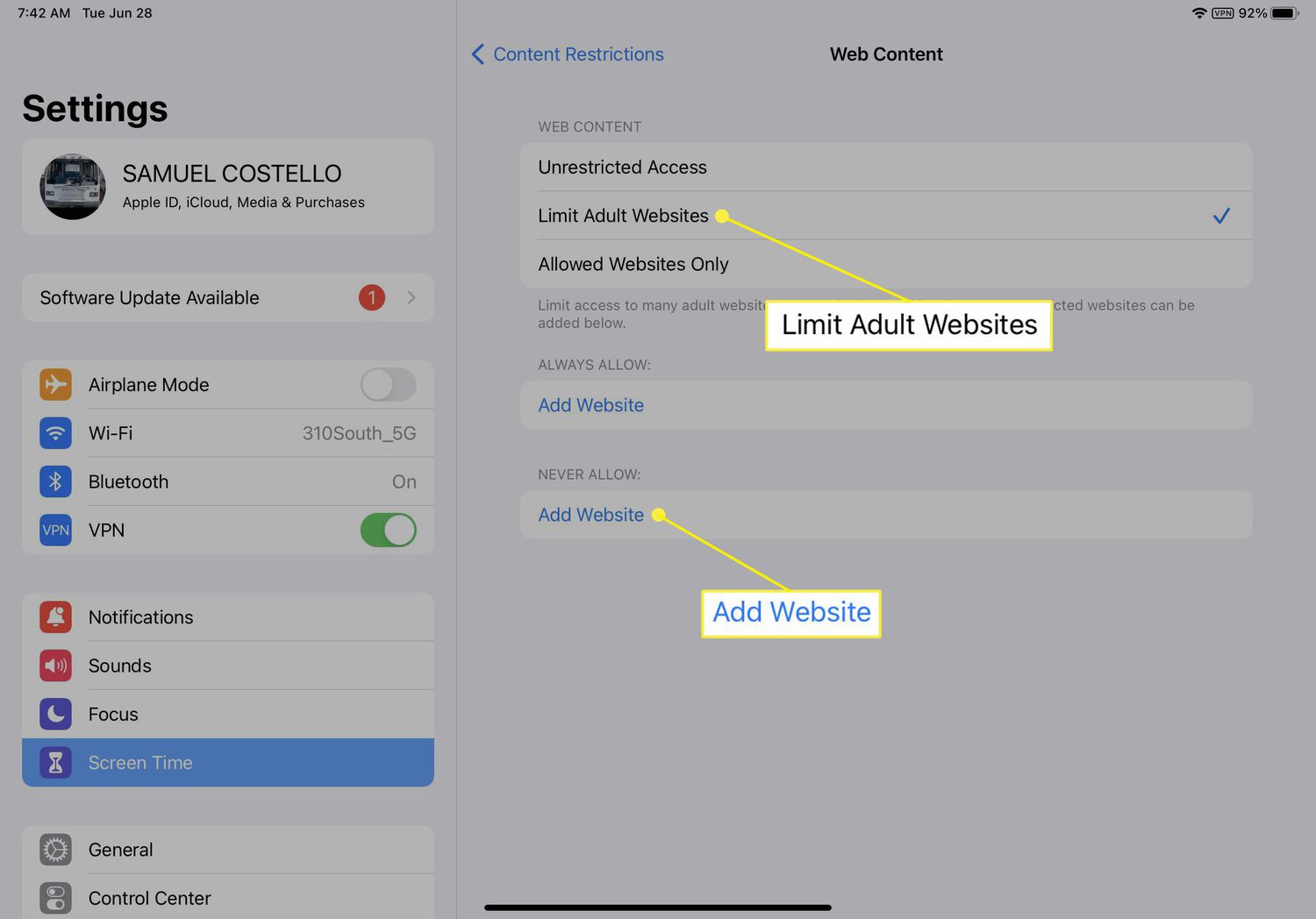
You can also approach this in the opposite direction and create a list of only the websites the iPad can access. Tap Allowed Websites to do that.
-
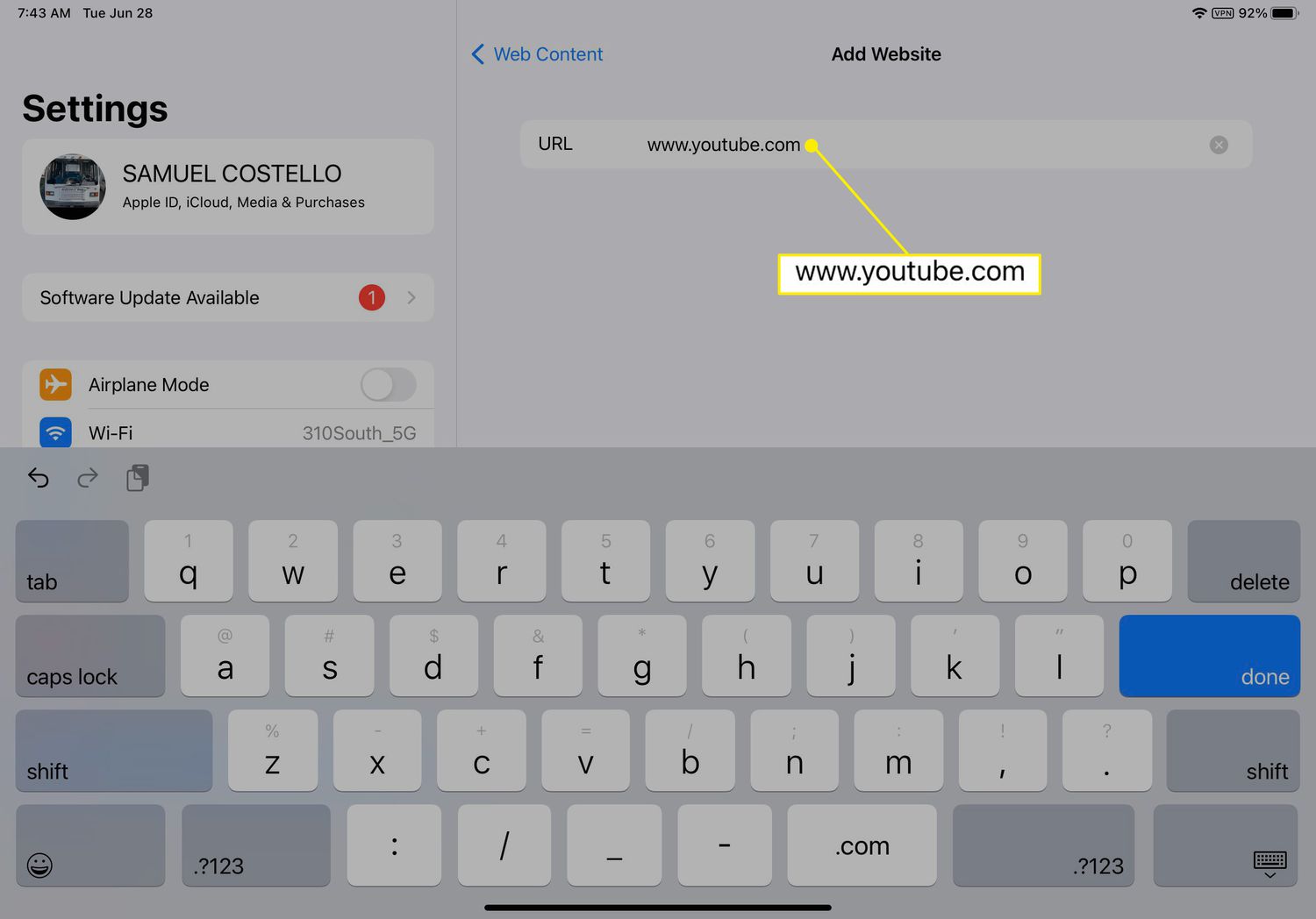
Enter www.youtube.com in the box, then tap Web Content at the top to return to the previous screen.
Set a Screen Time passcode so any users of the iPad are prevented from changing these settings to unblock YouTube. Do that through Settings > Screen Time > Use Screen Time Passcode.
- How do I block YouTube on an iPhone?
The steps in iOS will be the same as in iPadOS. Use Screen Time to limit both the app and the website in Settings.
- How do I block YouTube channels?
You can't block a channel, but you can tell YouTube to hide comments from the channel. Open its main page in the app, then select the More icon (three vertical dots) in the upper-right corner and choose Hide user from my channel > Hide user.