
This article will show you how to tether your iPad and iPhone by creating a mobile hotspot in iOS settings. Instructions apply to devices running iOS 7 and later.
How to Use a Mobile Hotspot With an iPad
To share your iPhone's cellular data connection with any nearby iPad so it can get online, follow these steps:
-
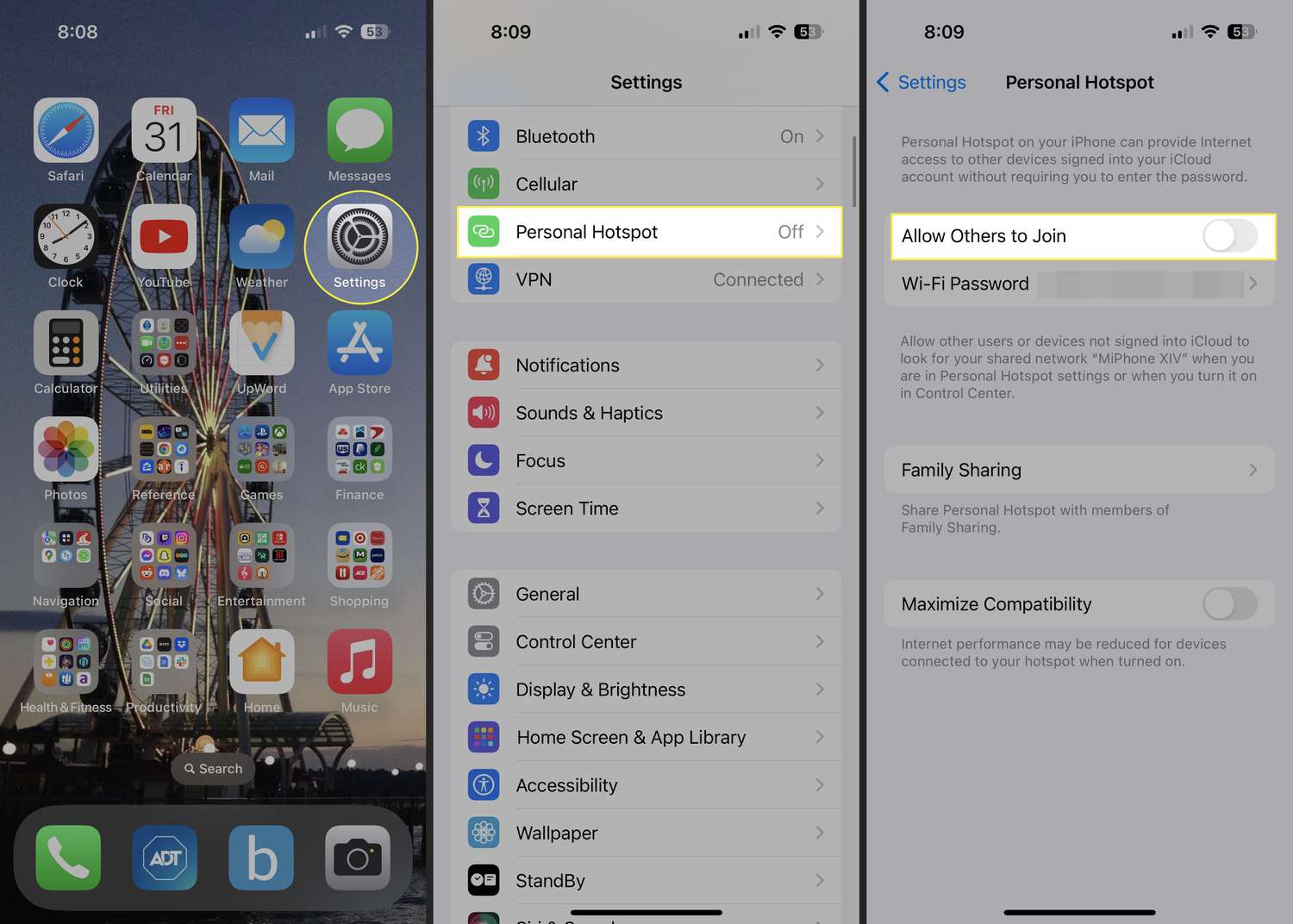
Open Settings.
-
Select Personal Hotspot.
-
Move the Allow Others to Join toggle switch to on/green.
In some versions of iOS, this option is labeled Personal Hotspot.
-
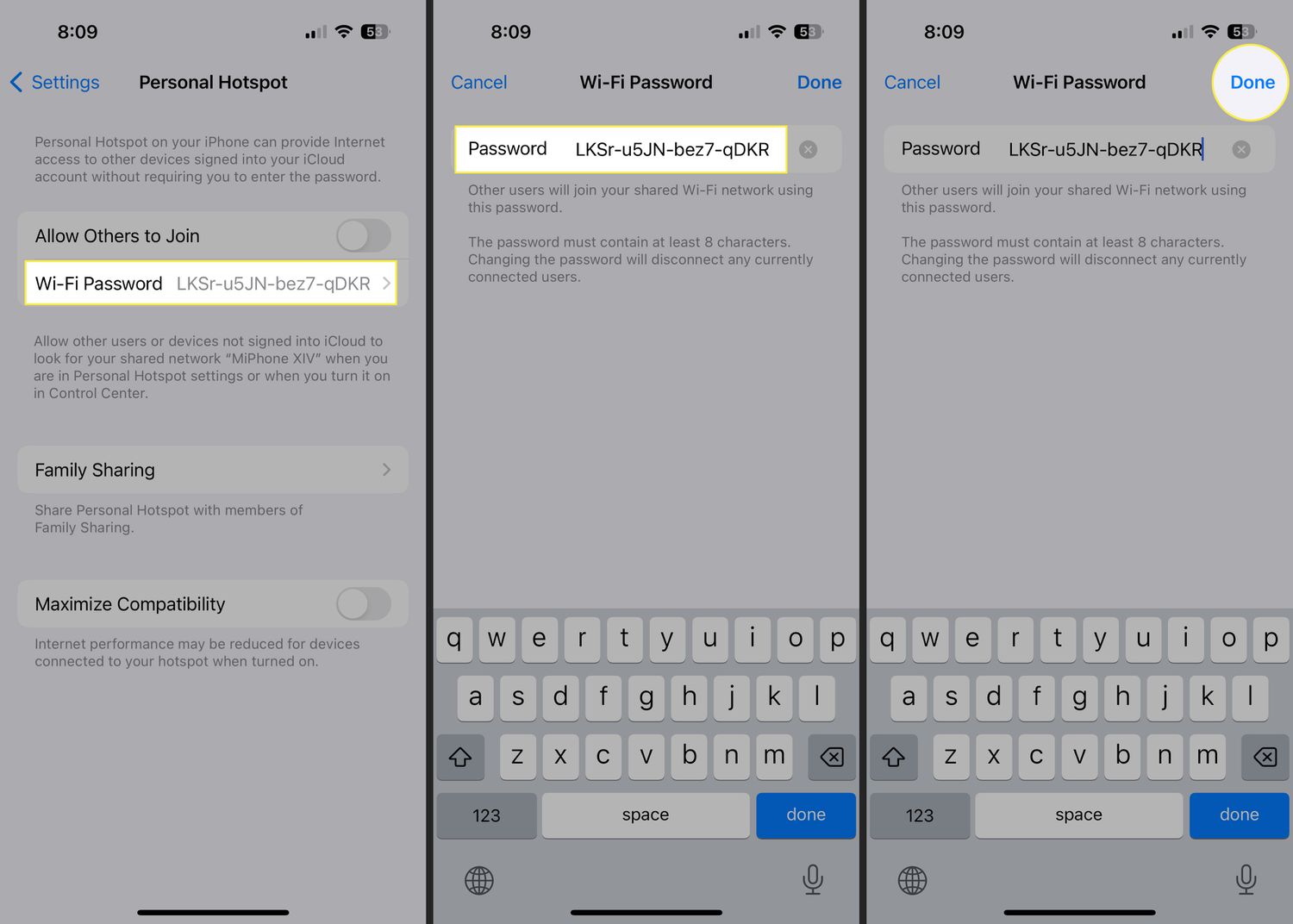
Note the password listed on this screen. If the default password is too hard to remember, you can change it by tapping it and entering a new one on the next screen. Tap Done to save the new password.
Hotspot passwords must be at least eight characters.
-
Your iPhone is now ready to connect to your iPad.
Now follow these steps to connect your iPad to your iPhone hotspot:
-
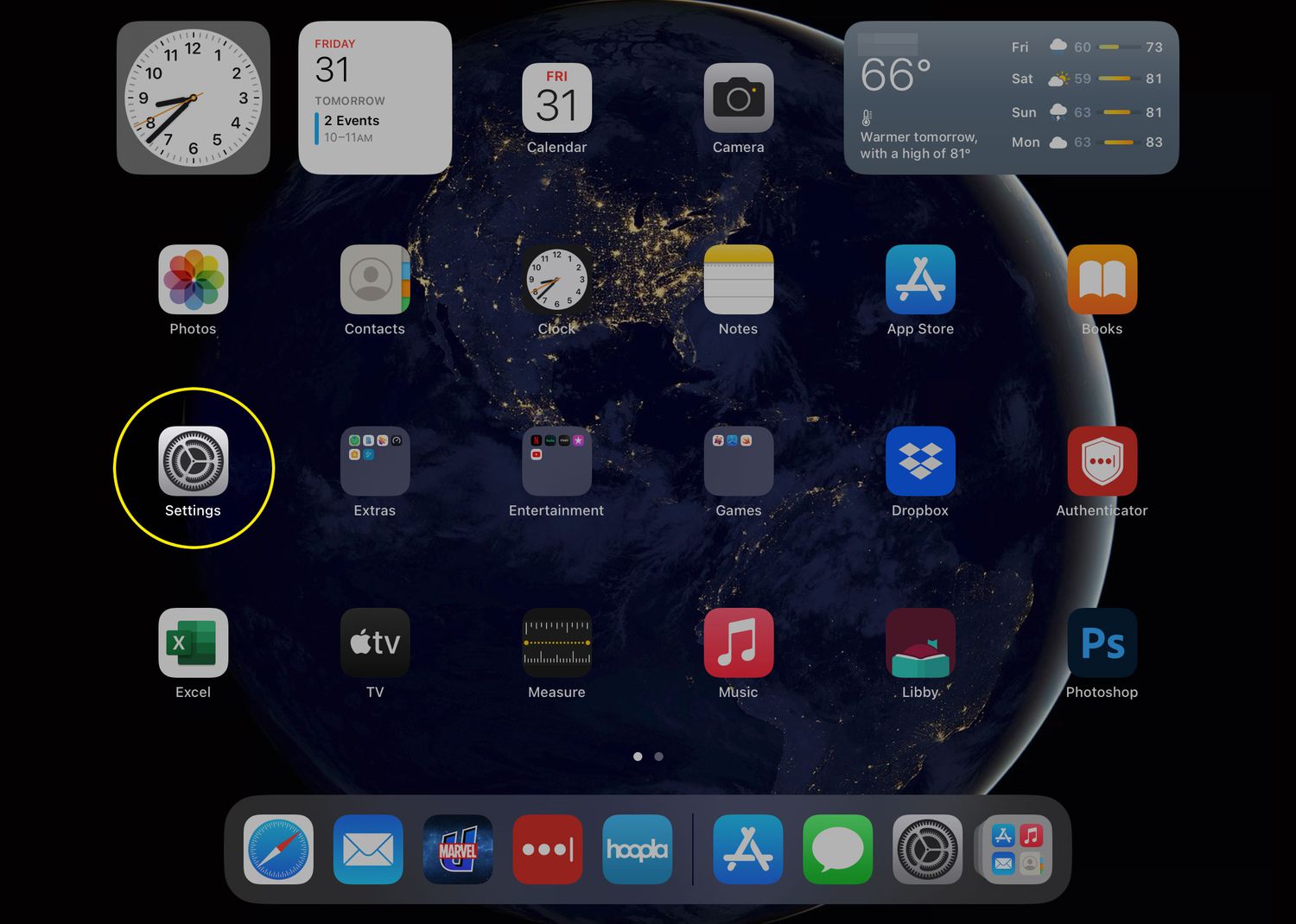
Tap Settings.
-
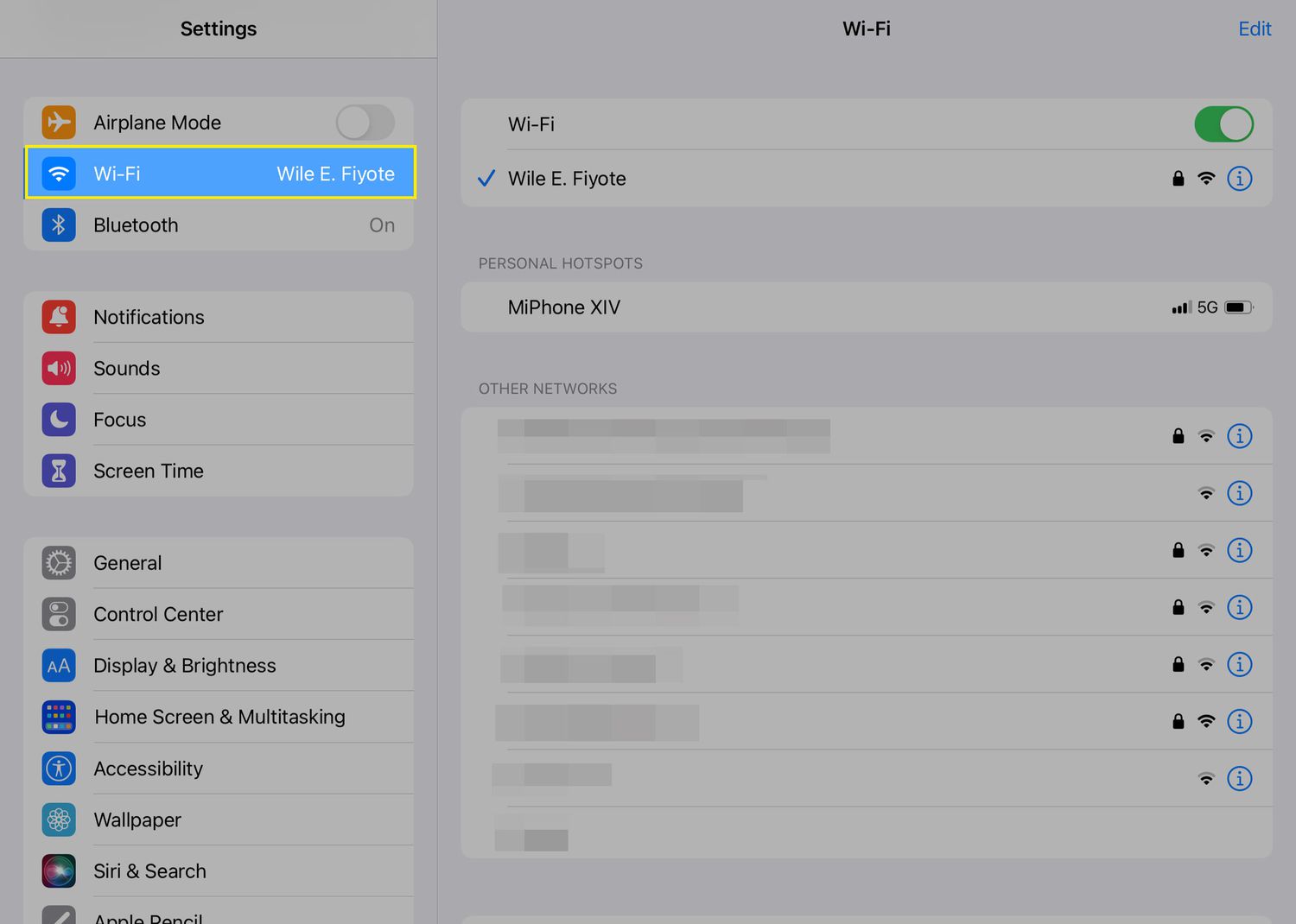
Tap Wi-Fi.
-
In the Personal Hotspots section, tap the name of your phone.
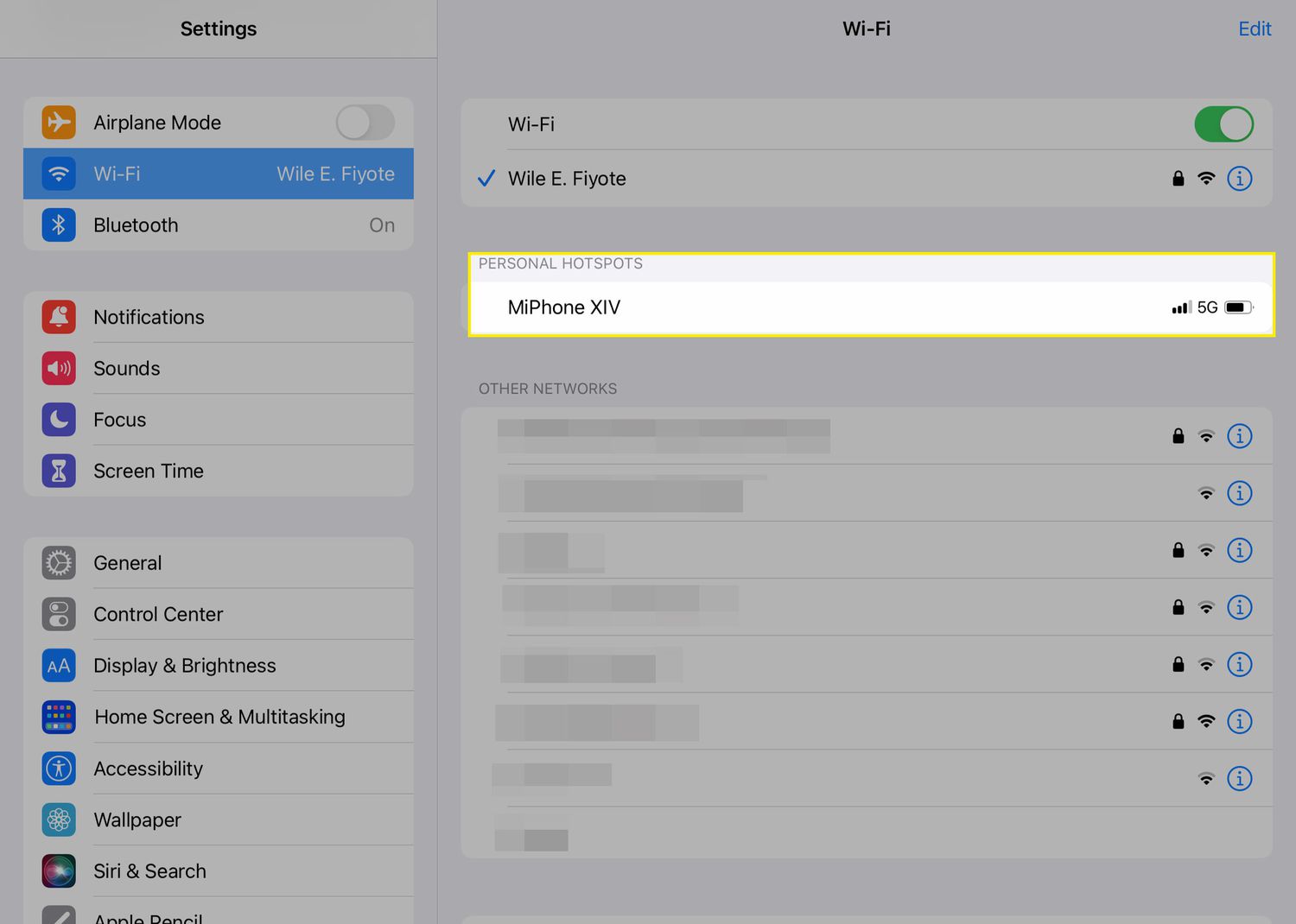
-
Enter the password for the hotspot, if prompted. The password can be found in the menu on your iPhone.
-
The iPad can access the internet through the iPhone as long as the Personal Hotspot is turned on and the iPad is in Wi-Fi range of the iPhone.
You can use the iPhone as you normally would even while the iPad is tethered to it. The only difference you might notice is that the iPhone's internet connection may be a little slower than normal since the iPad is sharing it.
How Data Use Works When Tethering
Any data that devices use while tethered to the iPhone counts against the iPhone's monthly data plan. If you have a plan that charges you for overages or slows your speeds after you use a certain amount, you'll want to be aware of this.
It's usually best to let other devices tether for limited periods of time and for relatively low-data-use functions. For example, don't tether an iPad to the iPhone's cellular connection to download a 4 GB game or stream a movie.
Connecting Multiple Devices to One iPhone
Multiple devices can connect to a single iPhone Personal Hotspot. These devices can be other iPads, iPod Touches, computers, or other Wi-Fi-equipped devices. Follow the steps to connect the device to Wi-Fi, enter the iPhone Personal Hotspot password, and you'll have everyone online in no time.
How to Disconnect Tethered Devices
When you're done, turn off Personal Hotspot on your iPhone by returning to Settings > Personal Hotspot and turning the toggle switch to off/white.
Turning off the Personal Hotspot automatically disconnects any devices that are using it.
Keep Personal Hotspot off except when you're using it to conserve battery life.
While not required, the iPad user should probably also turn off their Wi-Fi to save battery. Open Control Center and tap the Wi-Fi icon (second from the left in the top bar) so that it's not highlighted.
It's possible, in some situations, for Personal Hotspot to disappear from your iPhone, preventing you from tethering an iPad to it. In other cases, Personal Hotspot may stop working.
Is Your iPad Obsolete and Outdated?