
What to Know
- First: Apple icon > System Settings > Users & Groups > set Automatically log in off.
- Next: Control+Command+Q shortcut.
- Other options: Apple menu > Lock Screen or use hot corners, inactivity timer, and automatic lock settings.
Security is a vital concern if you store any sensitive data on your Mac or in your iCloud storage. This article explains six ways to lock your Mac and safeguard your privacy. Instructions apply to macOS Sonoma (14), macOS Ventura (13), and macOS Monterey (12).
These methods work for all Macs, but there are additional ways to lock a MacBook Pro that has a Touch Bar.
Check Your Password and Login Settings First
Before you can lock your Mac, you need to make sure it's actually possible to lock it.
If your Mac is set to log in automatically, or your account has no password set, then you won't be able to lock your Mac until these issues have been addressed.
There are a lot of in-depth Mac security measures that you can take, but the first, and most important, is to set an account password and lock your Mac when you aren't using it. This simple measure ensures that nobody will be able to access your local or iCloud data by simply using your Mac when you aren't looking.
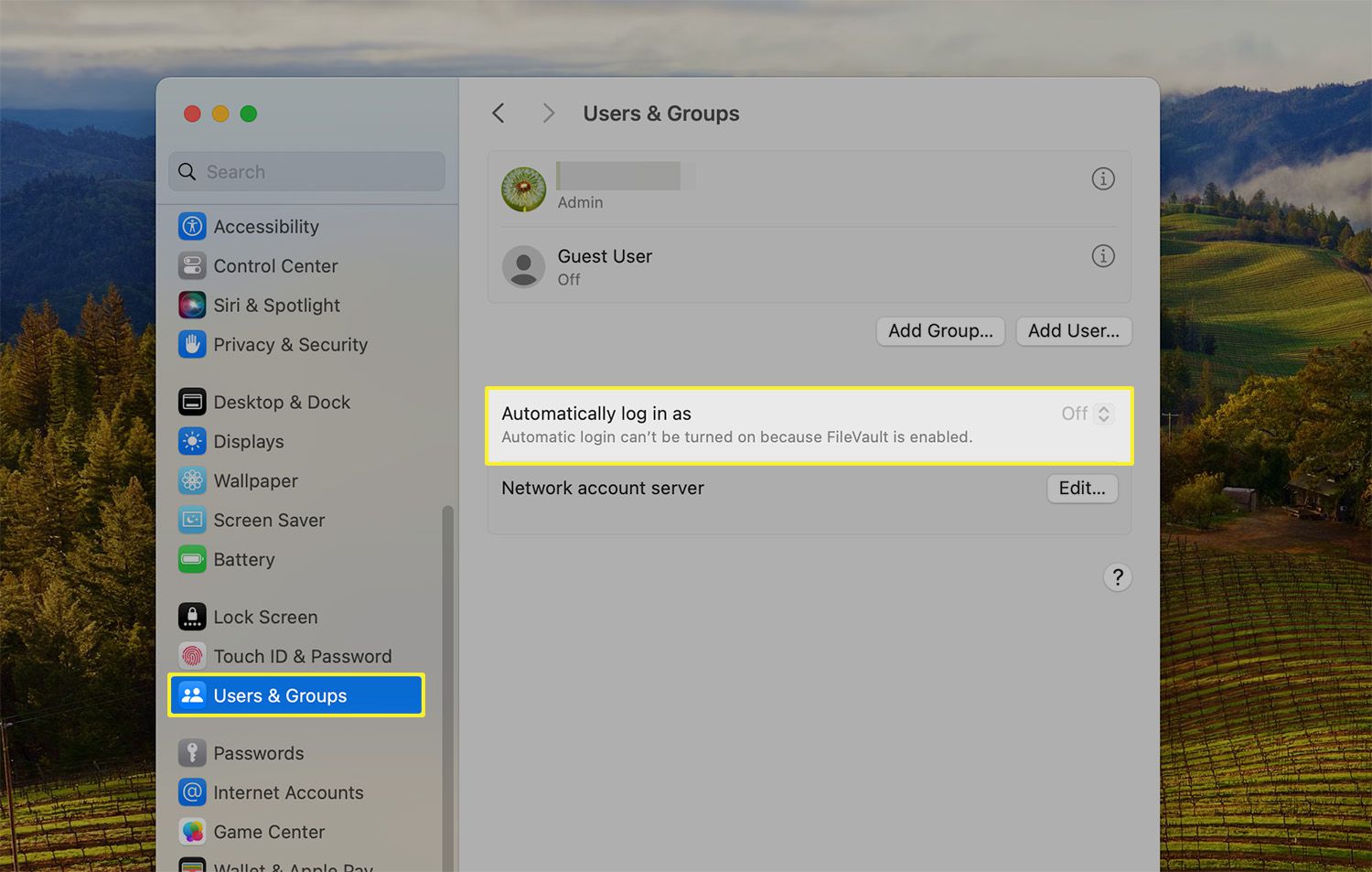
First, verify your password and then follow these steps to check that automatic login is off:
-
Click the Apple icon in the upper left corner, and select System Settings.
If you're operating macOS Monterey, this sequence appears as System Preferences > Users & Groups > lock icon > enter password > Login options > Automatic login > off.

-
Click Users & Groups.
-
Ensure Automatically log in as is set to Off.
If you have FileVault on, this area is dimmed because automatic login has been disabled.
How to Lock a Mac Using Shortcut Keys
If your user account has a password associated with it, and your Mac doesn't have automatic login turned on, then you can instantly lock your Mac at any time using an easy key combination.
When you press these keys together, the lock screen will appear, and nobody will be able to access your Mac without putting in the correct password.
To instantly lock your Mac, press and hold Control+Command+Q, and release the keys after the lock screen appears. This is the fastest an easiest way to lock your Mac as long as you can remember the combination.
Be careful not to press Command+Q without first pushing and holding Control, as Command+Q alone will instantly shut down your currently active program.
Lock Your Mac Using the Apple Menu
If you have trouble remembering shortcut combinations, you can also lock your Mac quite easily from the Apple menu.
-
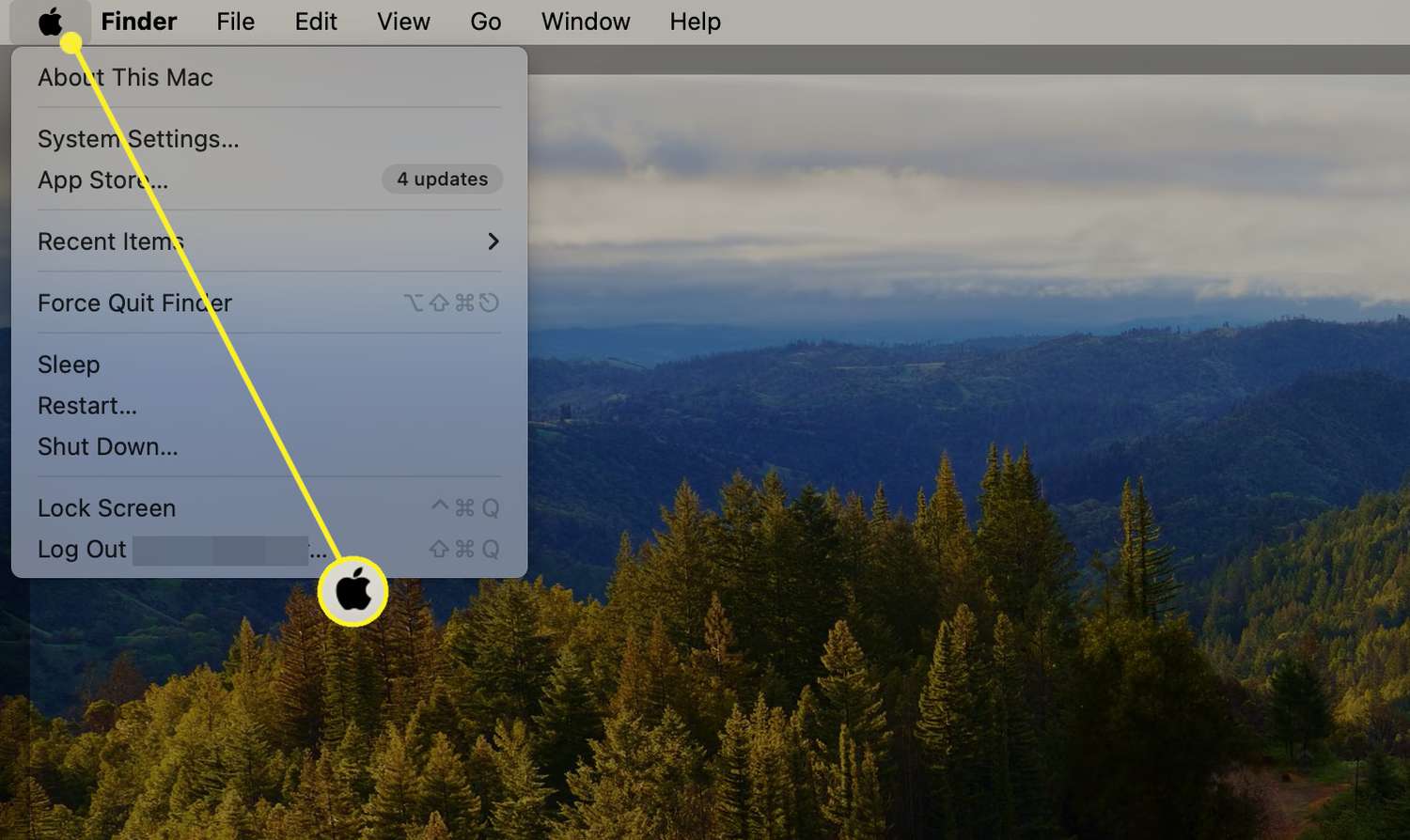
Click the Apple menu icon in the upper left corner of the screen.
-
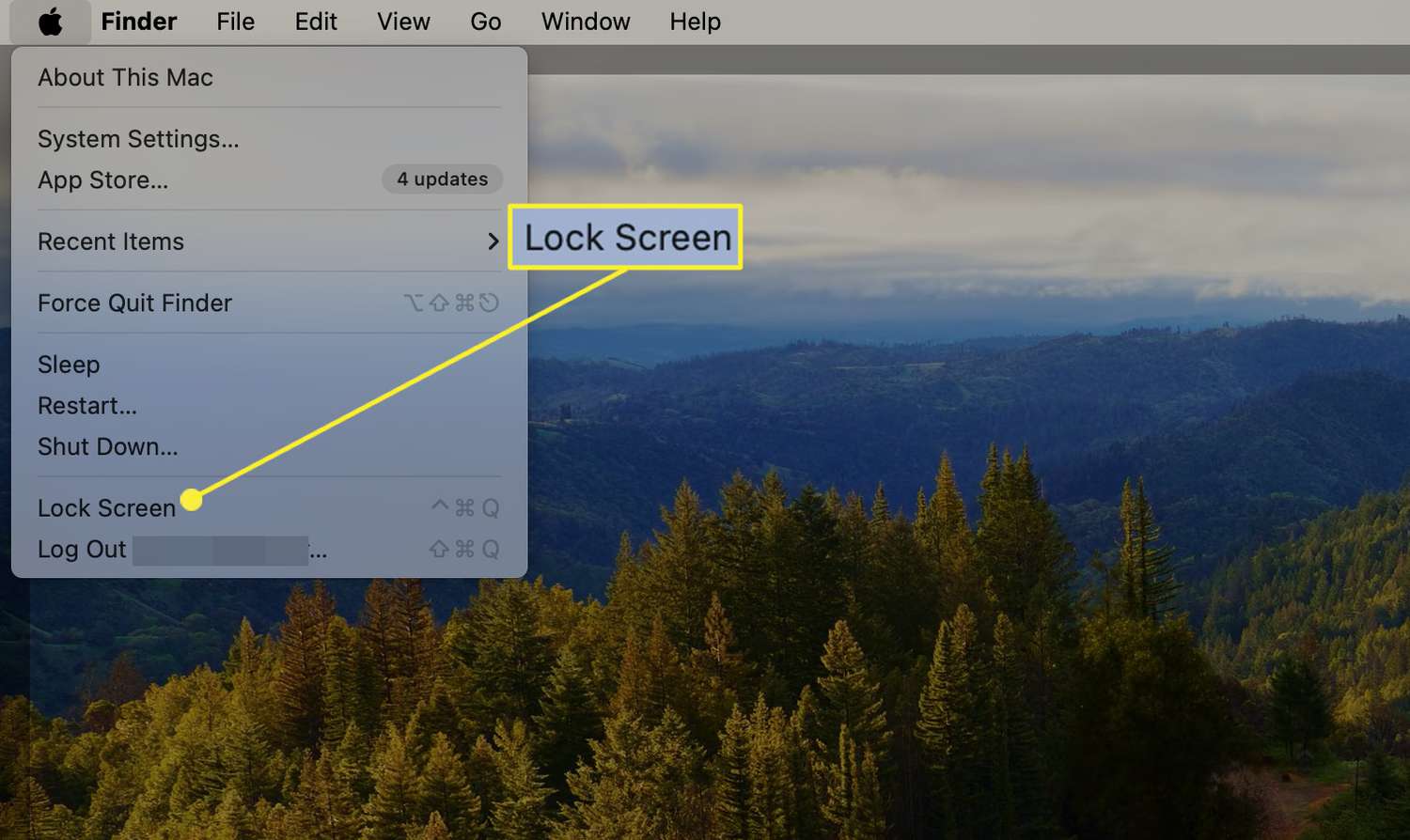
Click Lock Screen.
-
Your Mac will immediately switch to the lock screen.
Lock Your Mac Using Hot Corners
Another way to easily lock any Mac is to set up your hot corners. This feature allows you to set an action to occur whenever you move your mouse cursor into one of the four corners of your screen. There are a lot of options, and one is to immediately lock the screen.
-
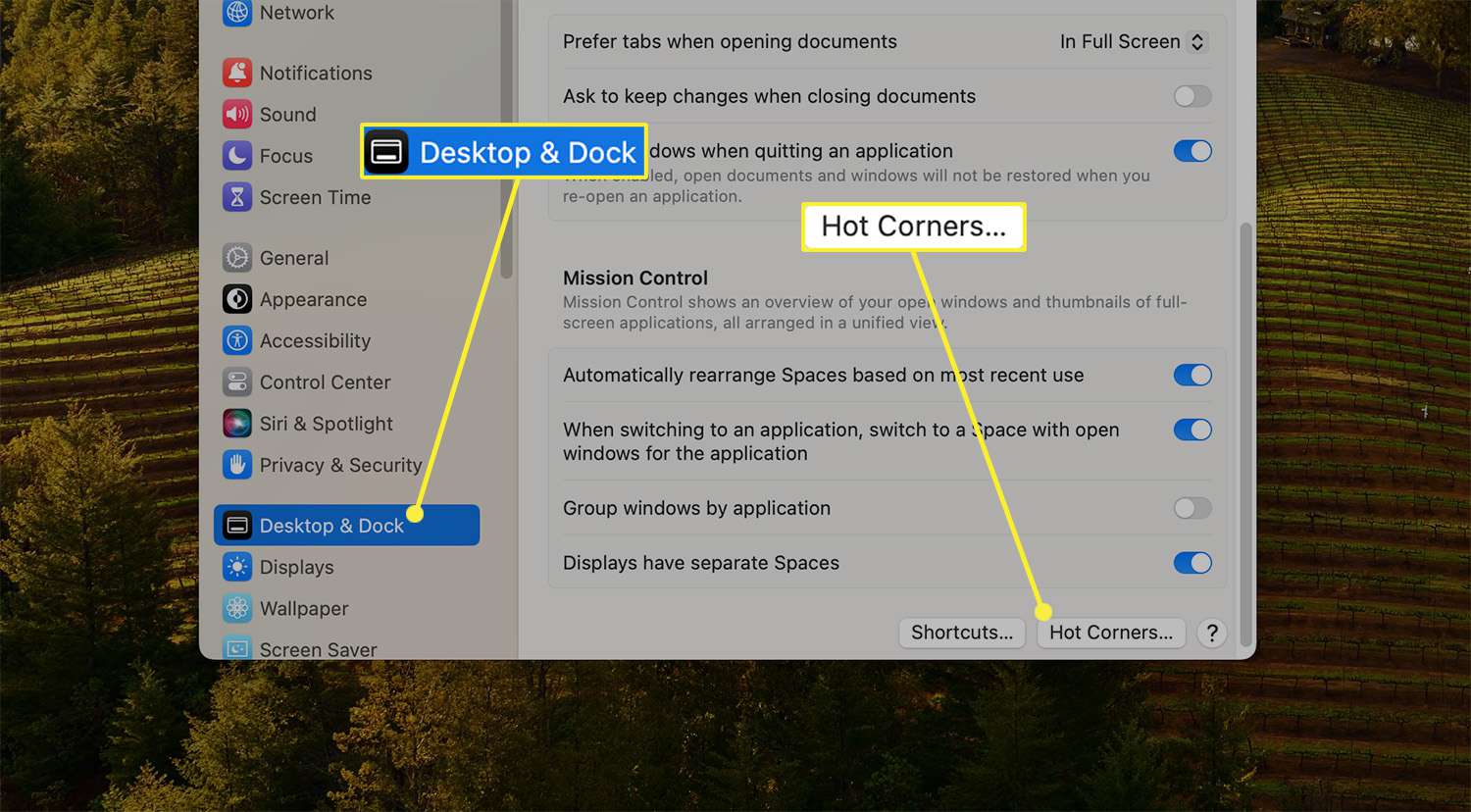
Go to Apple menu > System Settings.
-
Select Desktop & Dock.
-
Scroll down and select Hot Corners on the bottom right.
-
Click the drop-down menu that corresponds with your desired corner.
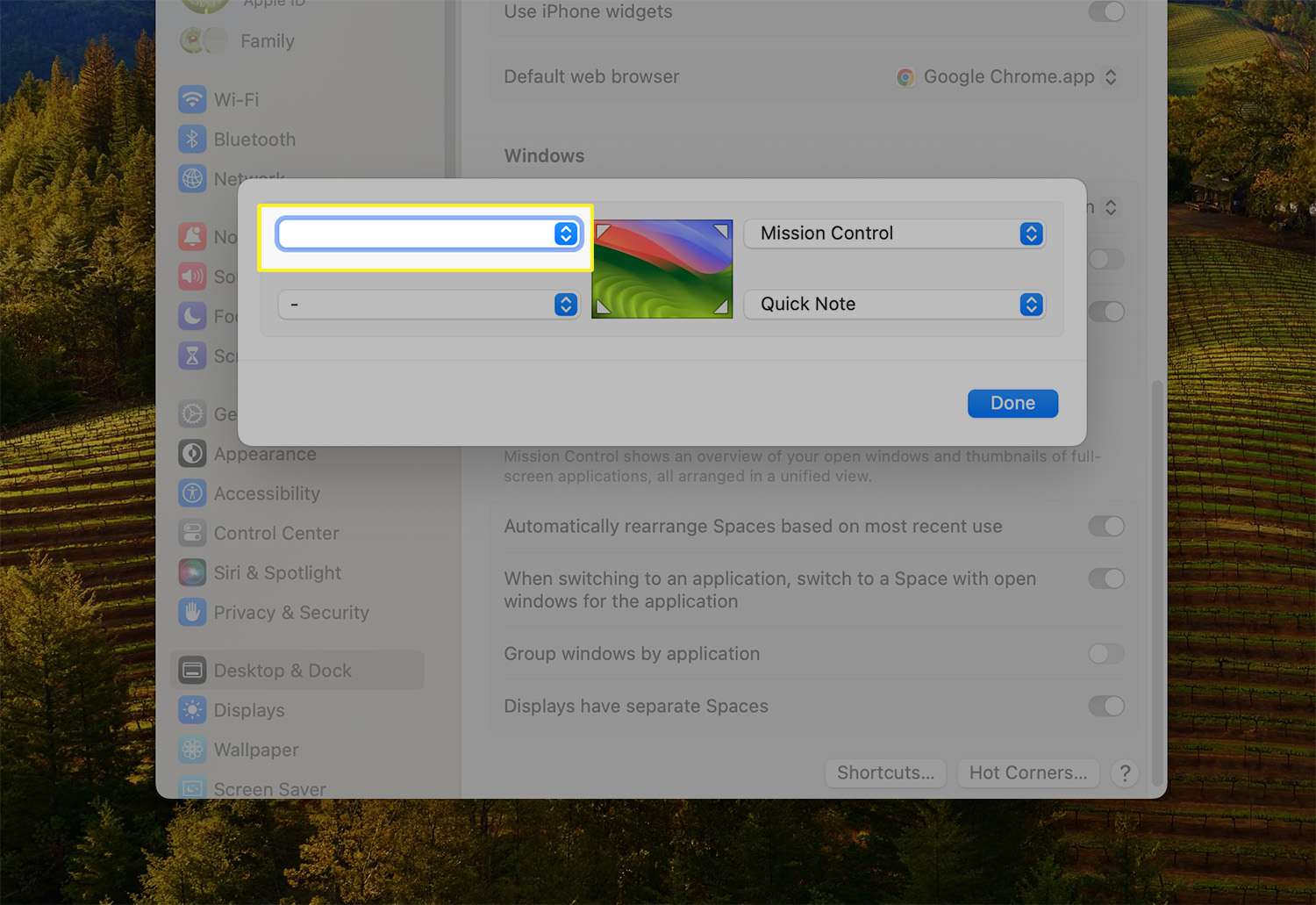
-
Select Lock Screen > Done.
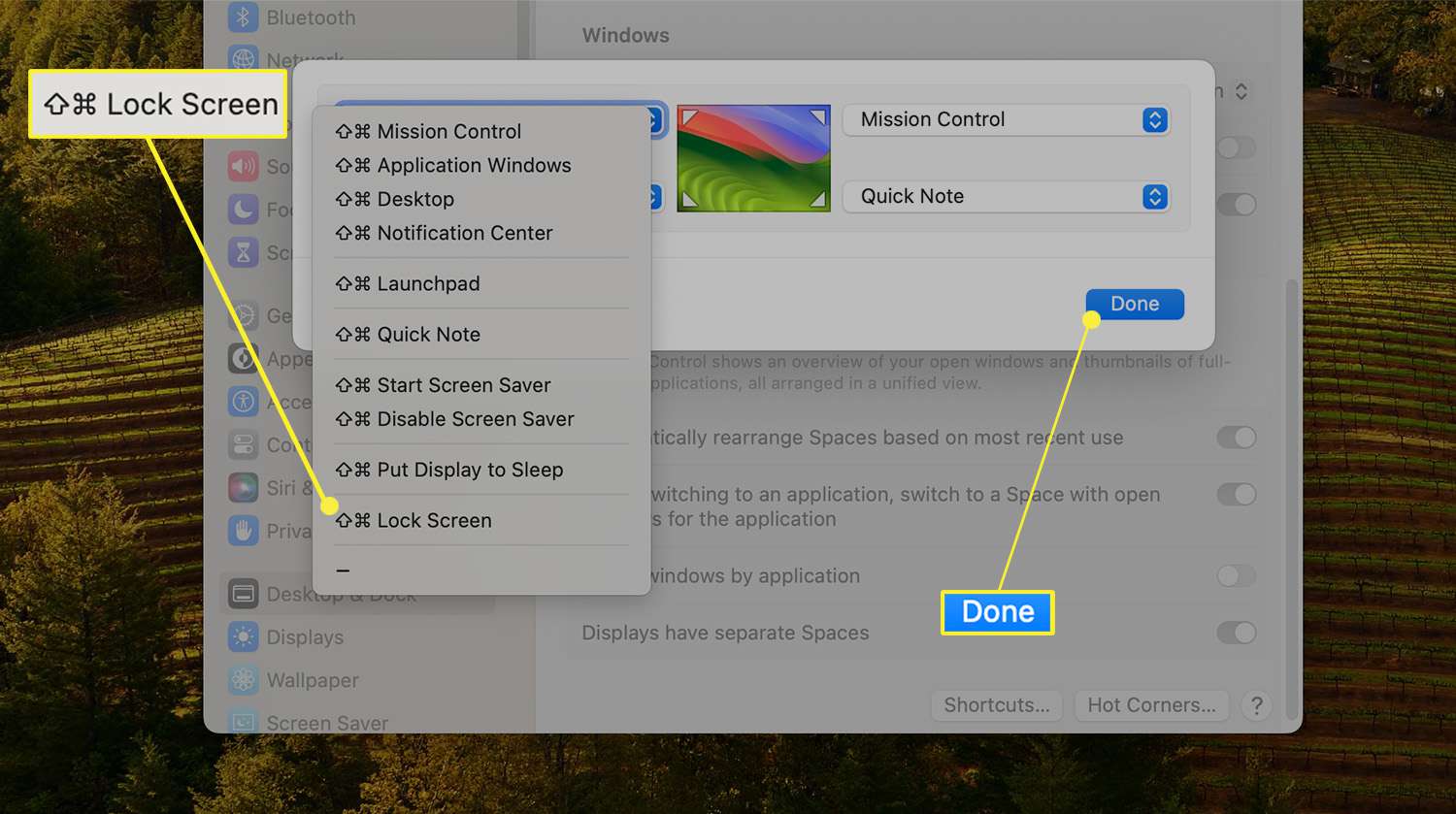
-
Your Mac will now lock whenever you move your mouse into the corner that you chose.
If you're running macOS Monterey, go to the Apple menu > System Preferences > Desktop & Screen Saver > Screen Saver > Hot Corners > Lock Screen > OK.
How to Use Hot Corners on a Mac
Set Your Mac to Lock When You Step Away
One useful way to ensure your Mac's protected when idle is to set the screen saver after a certain amount of time, and require a password to unlock the device. Here's how to edit inactivity lock settings for your Mac.
-
Open System Settings.
-
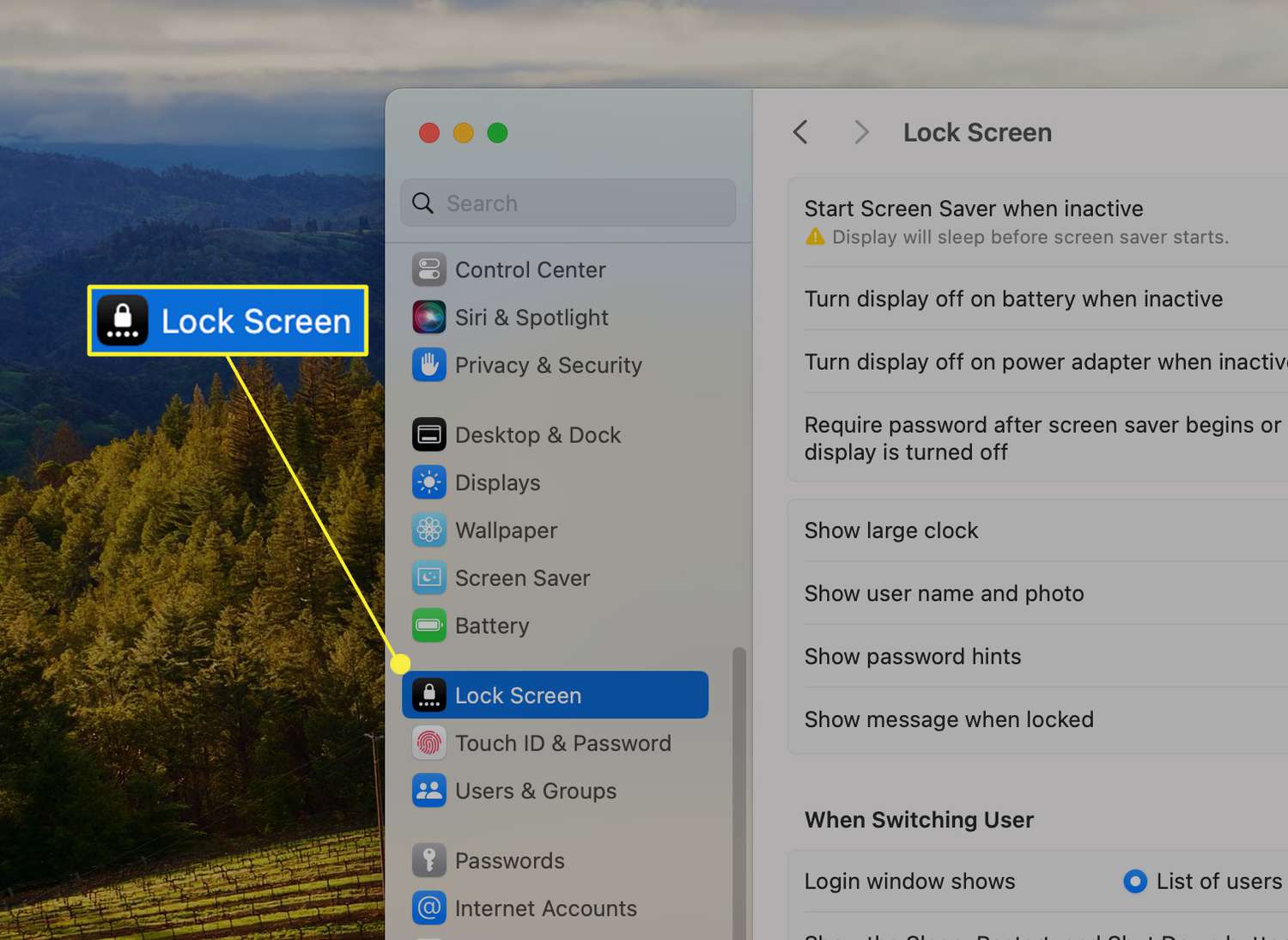
Click Lock Screen.
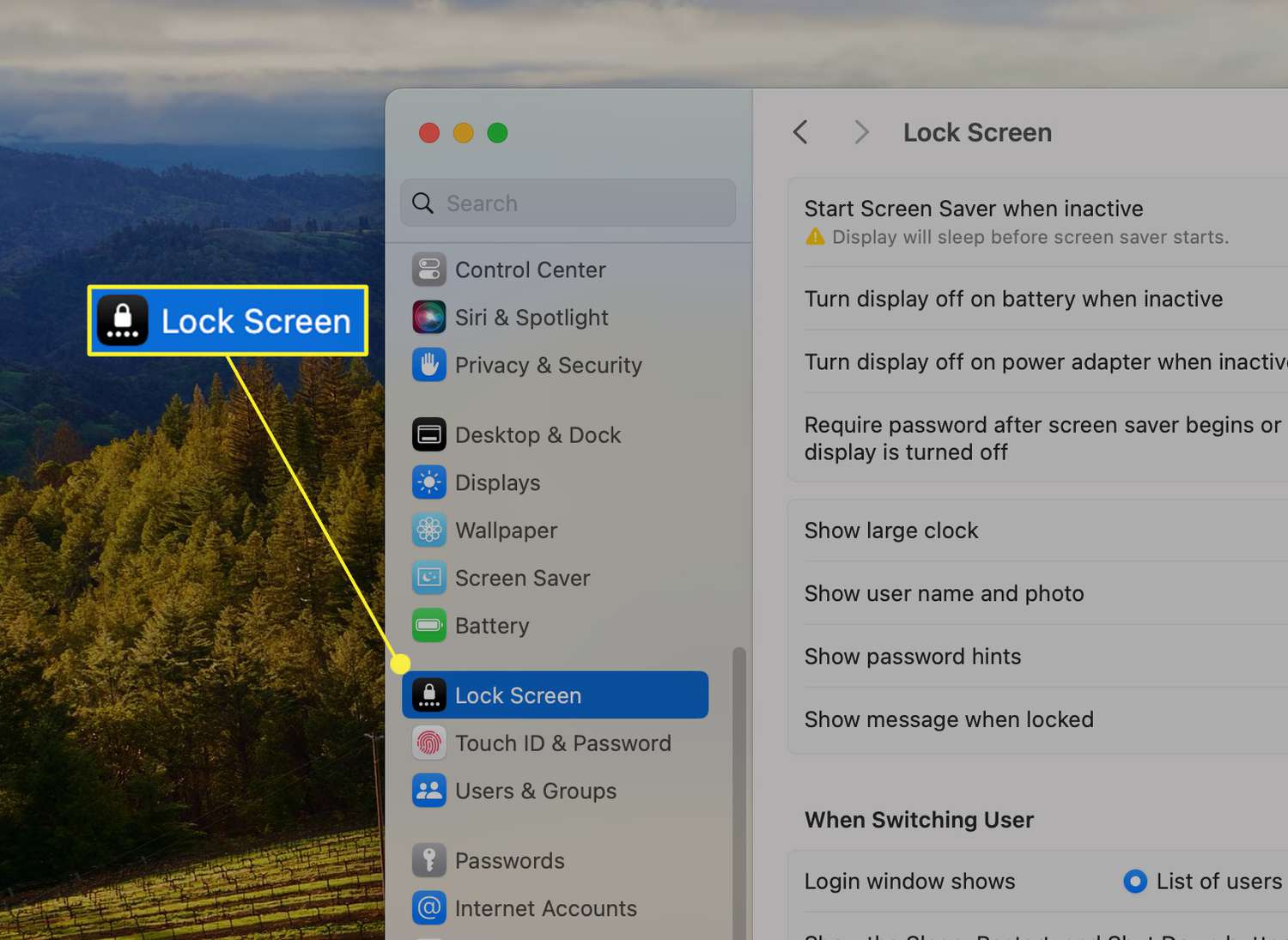
-
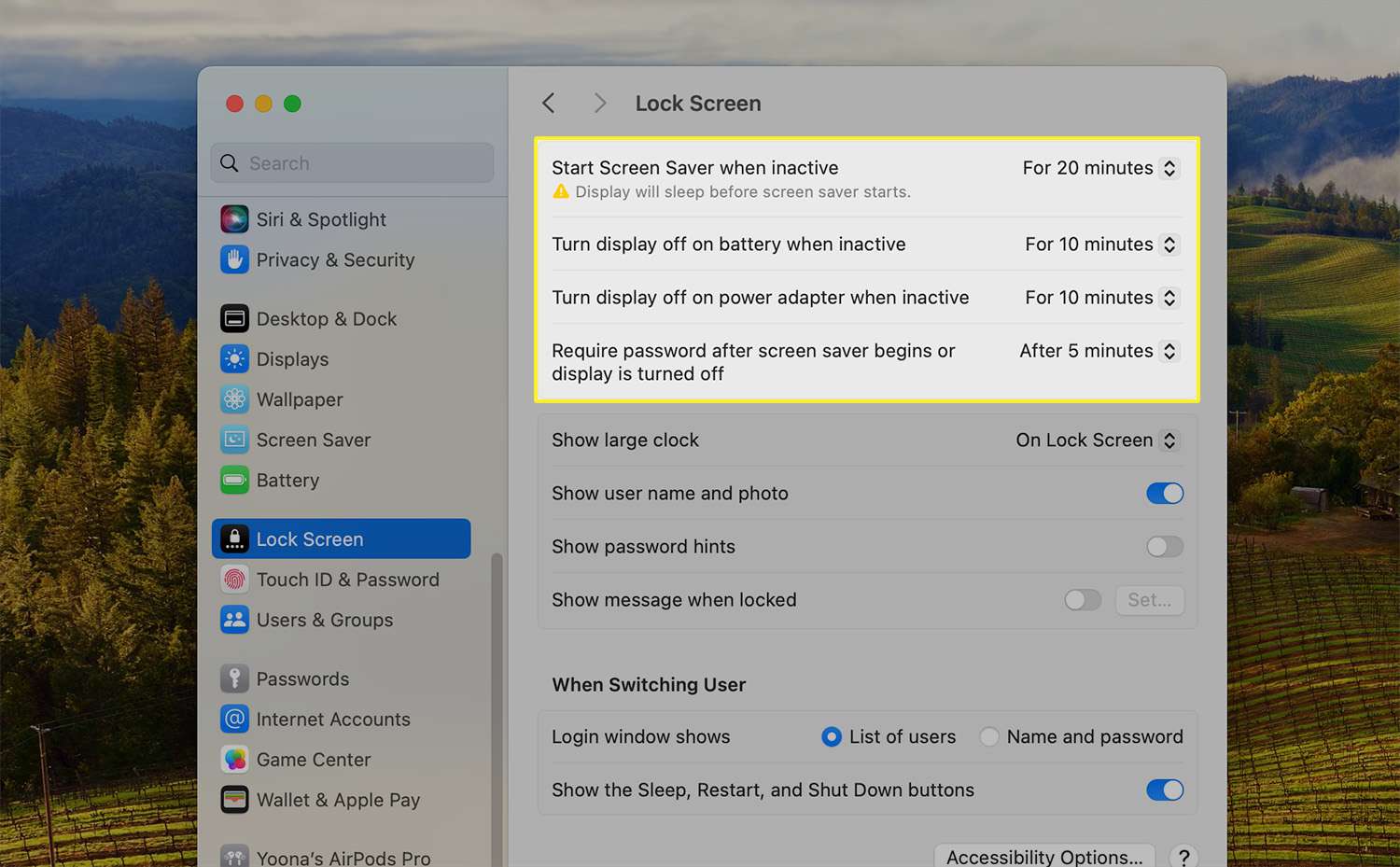
Use the Start Screen Saver when inactive drop-down menu to set the screen saver to turn on after a certain amount of inactivity.
-
You can also set the display to turn off when your Mac is plugged in or powered by the battery from the Turn display off on battery when inactive and Turn display off on power adapter when inactive.
-
Next to Require password after screen saver begins or display is turned off, select your preferred time frame. Enter your password if necessary to make this update.
If your Mac runs macOS Monterey, navigate to these controls from System Preferences > Security & Privacy > General > Require password... after sleep or screen saver begins.
-
Your Mac will now require a password based on the time selections you made for the Screen Saver or the display power settings.
Lock Your Mac by Closing the Lid
One of the simplest ways to lock your Mac is to close the lid. Make sure you have one setting enabled from the Lock Screen preferences to make this behavior happen.
-
Click System Settings from the Apple menu.
-
Select Lock Screen.
-
From Require password after screen saver begins or display is turned off, select Immediately.
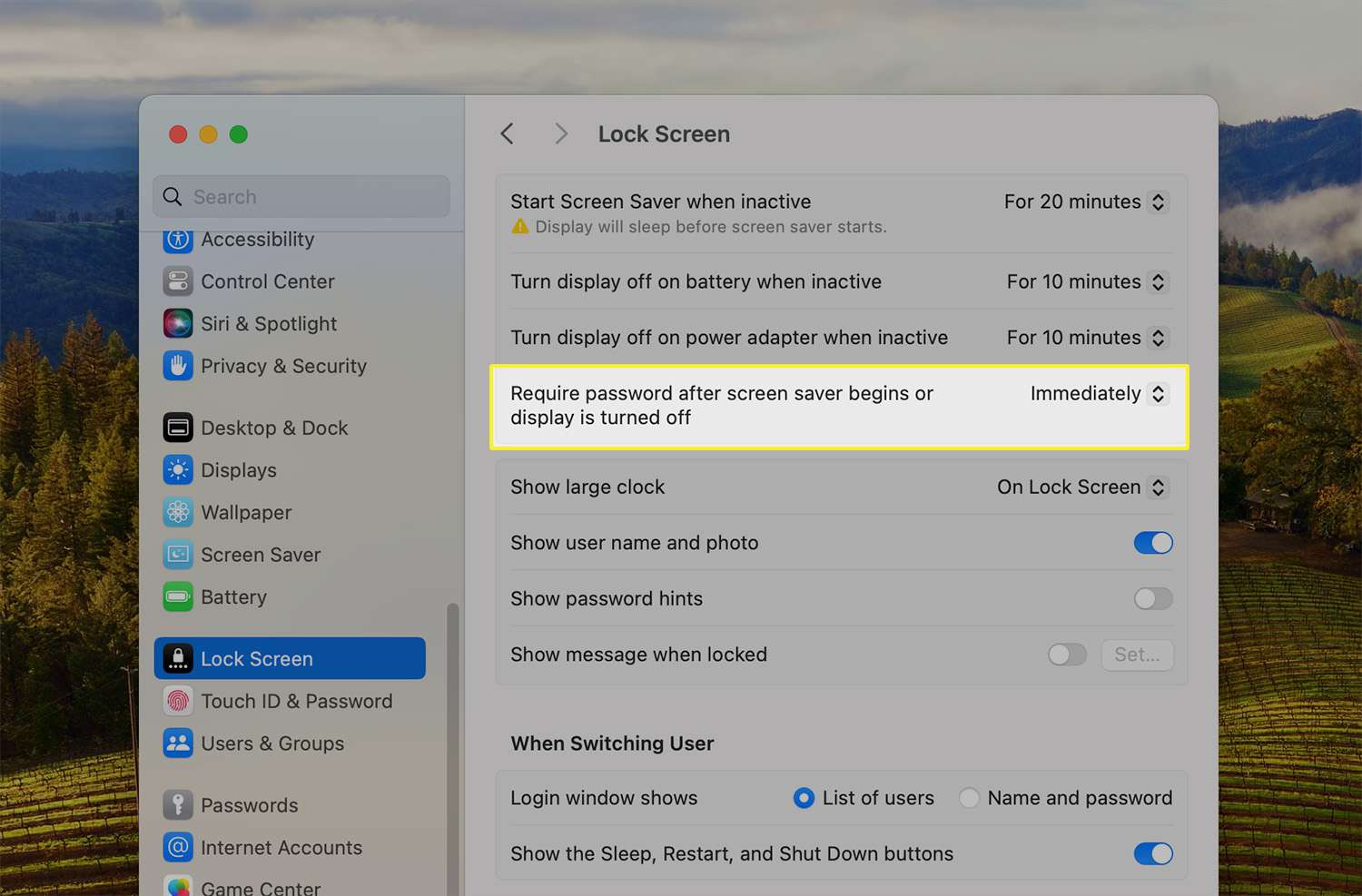
If your Mac runs macOS Monterey, use this path: System Preferences > Security & Privacy > General > Require password... after sleep or screen saver begins.
-
Close your Mac's lid to double-check that the Lock Screen appears.
Ways to Lock a Mac
There are a number of ways to lock a Mac, but they all require you to set up user passwords for all the accounts on your Mac first. Once that's done, you have these options:
- Automatic inactivity timer: This is an important method, because it kicks in if you are called away from your Mac unexpectedly or just forget to lock it. Whenever your Mac enters sleep mode, or the screen saver activates, the screen will either lock immediately or after the amount of time you choose.
- Keyboard shortcut: This method is essential, as it's extremely fast and you can activate it at any time. The downside is you have to memorize a key combination.
- Close the lid: If you have the right setting turned on from the Lock Screen preferences, closing your Mac will automatically trigger the Lock Screen.
- Apple menu: This is a good fallback method, as you don't need to memorize a key combination. The option to lock your screen is always located conveniently in the Apple menu.
- Hot corners: This method allows you to set it so that your screen locks when you move your mouse cursor into one of the four corners of your screen. If you're already using all four hot corners for other things, then you won't be able to use this method.