
Where is the mode button on Cisco 9300?
The mode button on a Cisco 9300 switch is located on the front panel of the switch. It is typically a small, recessed button that can be pressed using a paperclip or similar small object. This button is used for various functions like resetting the device or clearing the configuration.
The Catalyst 9300 switches might have slight cosmetic differences on the bezels.
Front panel components of C9300-48S:
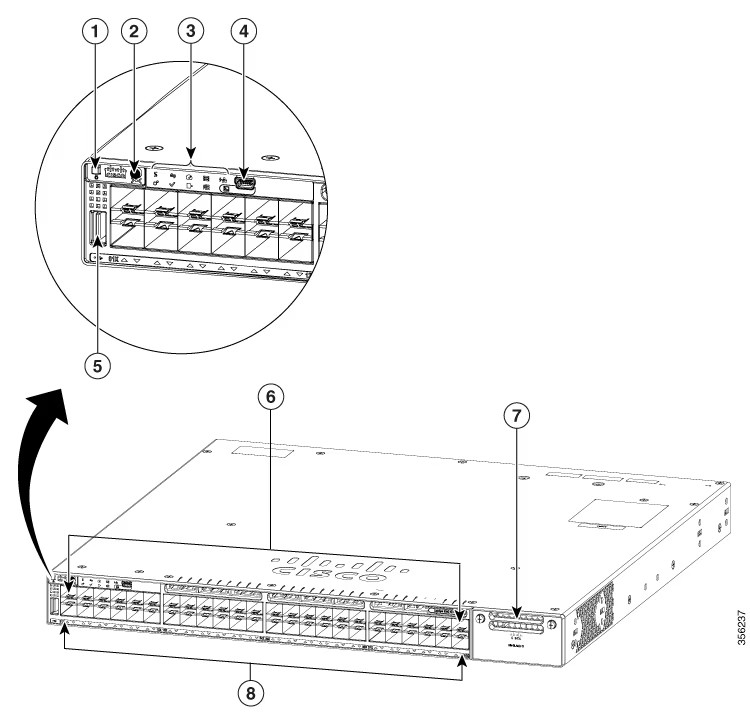
| 1 | Beacon LED (UID button) | 5 | USB Type A storage port |
| 2 | Mode button | 6 | 10 M/100 M/1000 M SFP ports |
| 3 | Status LEDs | 7 | Uplink network module slots |
| 4 | USB mini-Type B (console) port | 8 | Port LEDs |
C9300L-48P-4X Switch Front Panel:
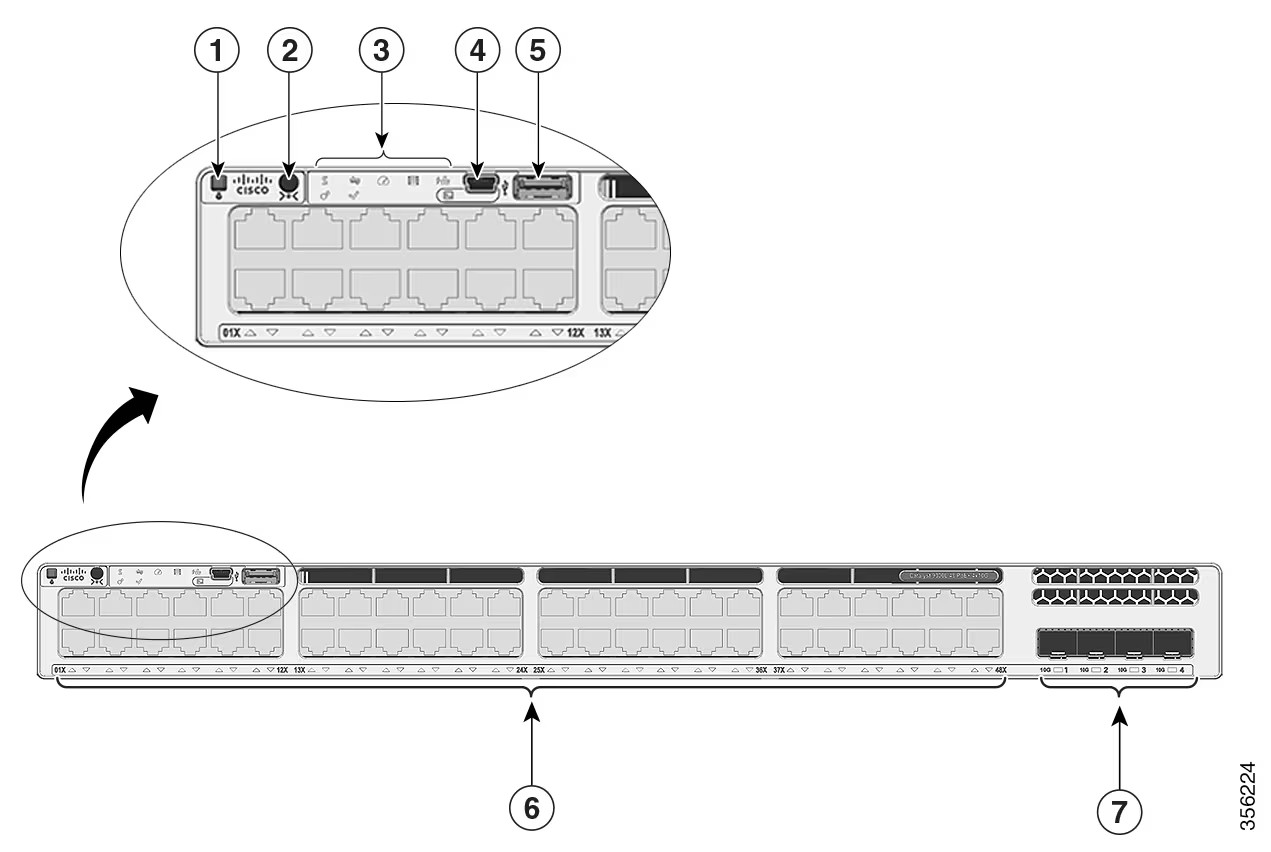
| 1 | Beacon LED (UID button) | 5 | USB Type A storage port |
| 2 | Mode button | 6 | 10 M/100 M/1000 M PoE+ ports |
| 3 | Status LEDs | 7 | Fixed uplink ports |
| 4 | USB mini-Type B (console) port | - | - |
C9300LM-48UX-4Y Switch Front Panel:
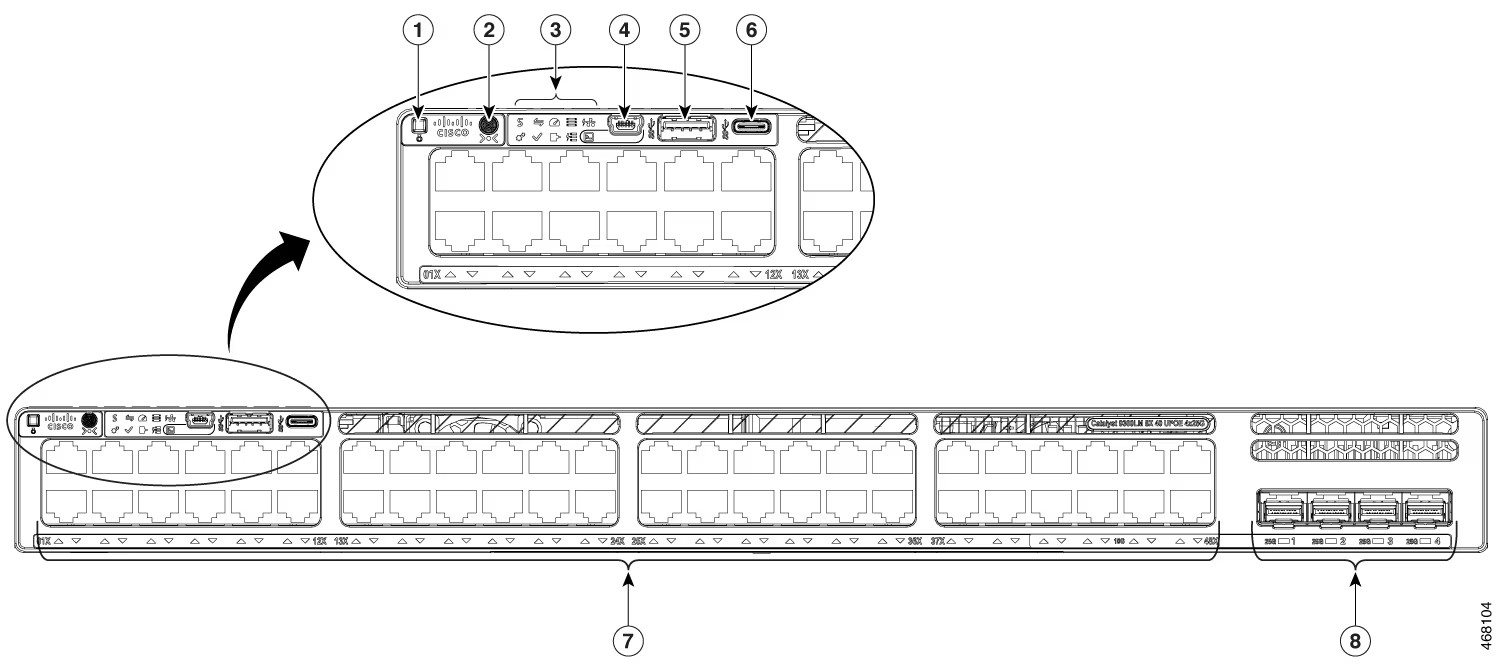
| 1 | Beacon LED (UID button) | 5 | USB Type A storage port |
| 2 | Mode button | 6 | USB Type C port |
| 3 | Status LEDs | 7 | 10/100/1000 M UPOE ports |
| 4 | USB mini-Type B (console) port | 8 | Fixed uplink ports |
C9300X-24Y Switch Front Panel:
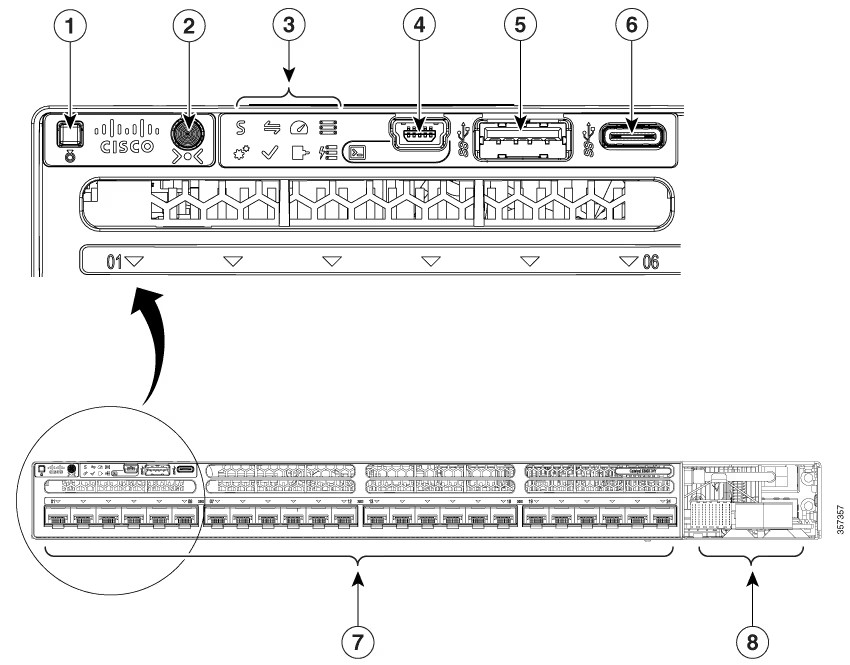
| 1 | Beacon LED (UID button) | 5 | USB Type A storage port |
| 2 | Mode button | 6 | USB Type C port |
| 3 | Status LEDs | 7 | 1 GE/25 GE/25 GE SFP28 ports |
| 4 | USB mini-Type B (console) port | 8 | Uplink network module slots |
STACK LED
This figure shows the LEDs on for each switch. When you press the Mode button to select the STACK LED, the corresponding port LEDs will blink green for each switch. For example, for switch 1, port 1 will blink green and the rest of the LEDs will be off. On switch 2, port 2 will blink green and the rest of the LEDs will be off. The same behavior will be seen with the remaining switches in the stack.
Port LEDs and Modes
Each Ethernet port, 1-Gigabit Ethernet module slot, and 10-Gigabit Ethernet module slot has a port LED. These port LEDs, as a group or individually, display information about the switch and about the individual ports. The port mode determines the type of information shown by the port LEDs.
To select or change a mode, press the Mode button until the desired mode is highlighted. When you change port modes, the meanings of the port LED colors also change.
When you press the Mode button on any switch in the switch stack, all the stack switches change to show the same selected mode. For example, if you press the Mode button on the active switch to show the SPEED LED, all the other switches in the stack also show the SPEED LED.
Cisco Catalyst 9300 Series Switches
Cisco All Series Switches New and Refurbished
For Cisco product list and quote, please visit: https://www.hi-network.com/categories/cisco or contact us at www.hi-network.com (Email: [email protected])