
What to Know
- Public: Search Google for what is my IP address or visit 2ip.io. Another way is to log in to your router.
- Private: System Settings > Network > connection type > Details.
- Your public IP address is provided by your ISP and can be seen by the websites you visit.
This article explains how to find your Mac's IP address. It covers multiple ways to locate the two kinds of IP addresses your Mac uses.
How to See Your Public IP Address on a Mac
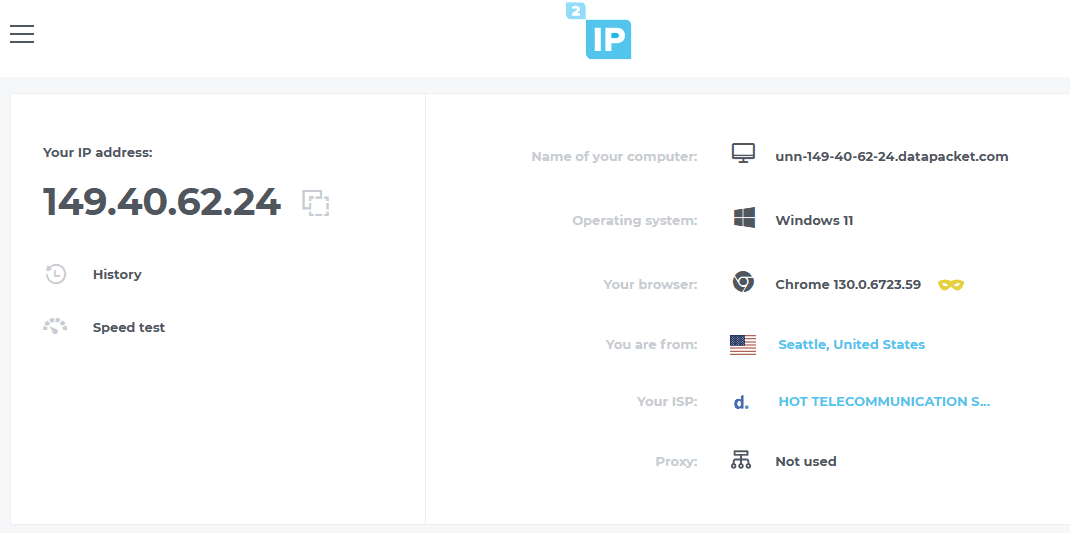
The quickest and easiest way to find your public IP address is to open your web browser and do a quick Google search for what is my IP address. The results should display your public IP address at the very top in a separate box.
Another easy way to see the public IP address on your Mac is with a website, like IP Chicken or 2ip.io.
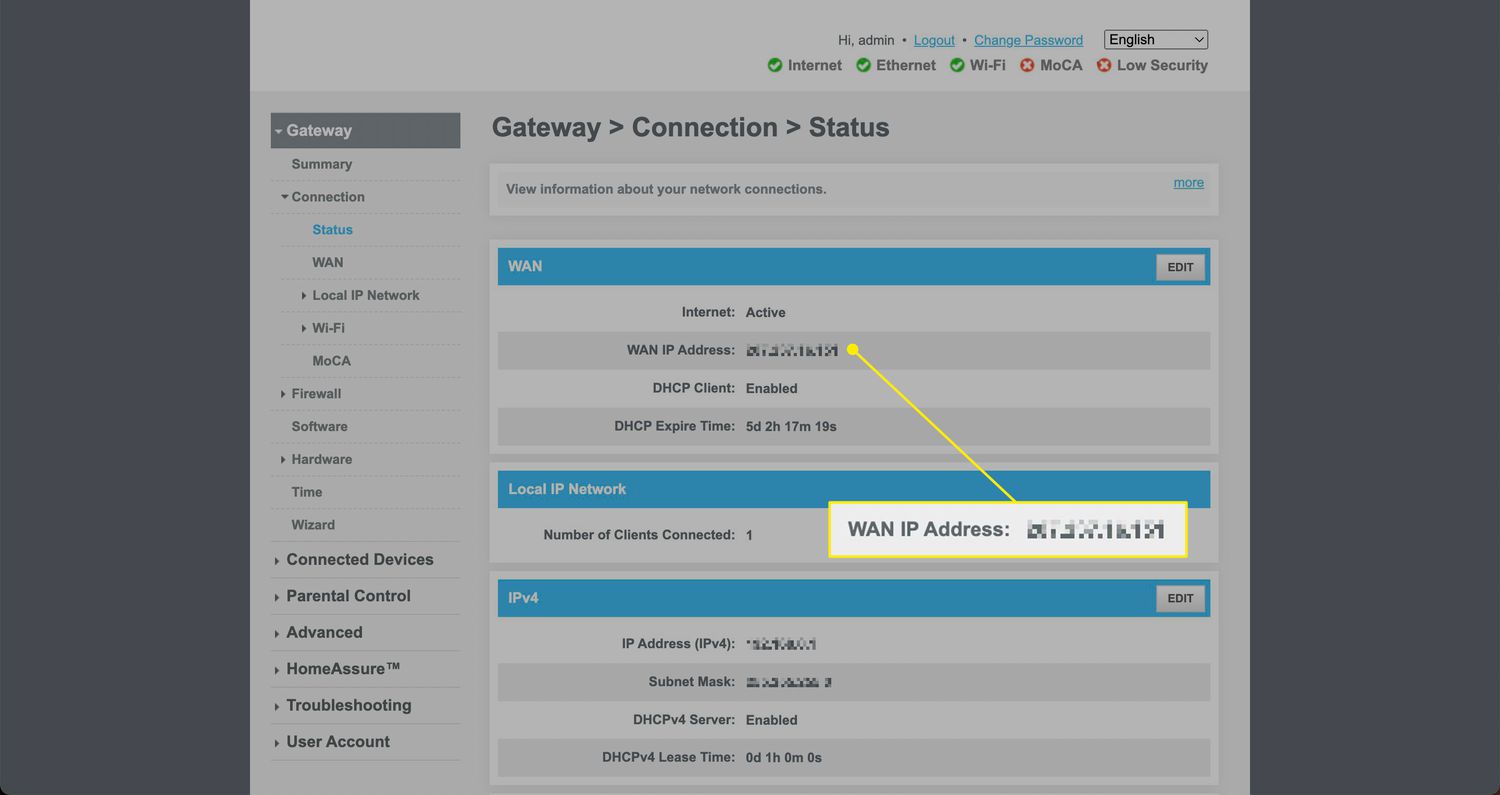
If you'd rather not use Google, you can manually locate your public IP address by logging into your router. It's a much longer process that doesn't work for all networks (some are accessible through an app), but it does work if you prefer that route.
How to Get Your Private IP Address on a Mac
Finding your private IP address is a little simpler than manually locating your public one-though not as easy as a Google search. Here's where to go on your Mac to see its local IP address:
-
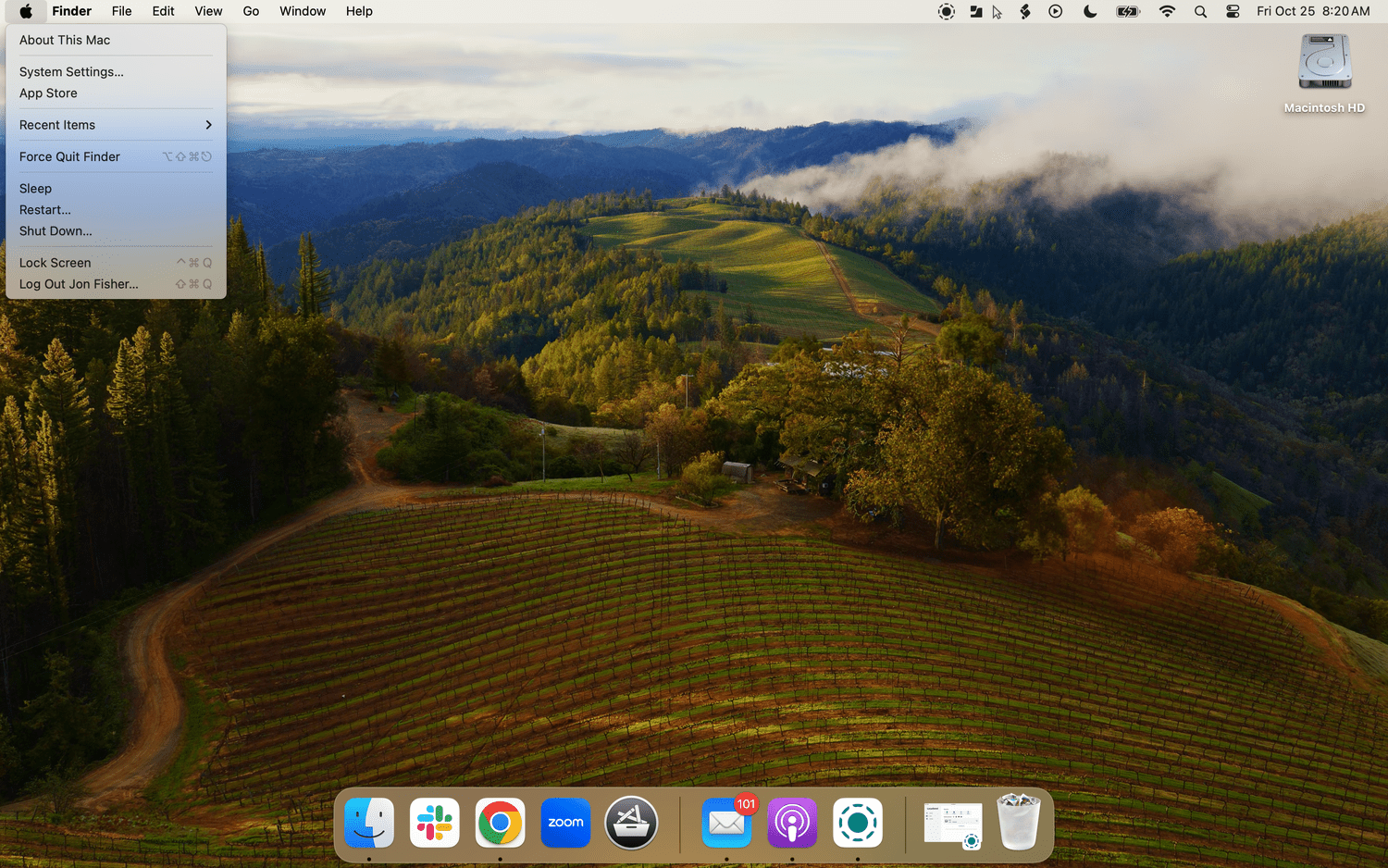
Select the Apple icon in the top-left corner of the screen in your Mac's Finder.
-
Select System Settings (or System Preferences on older versions).
-
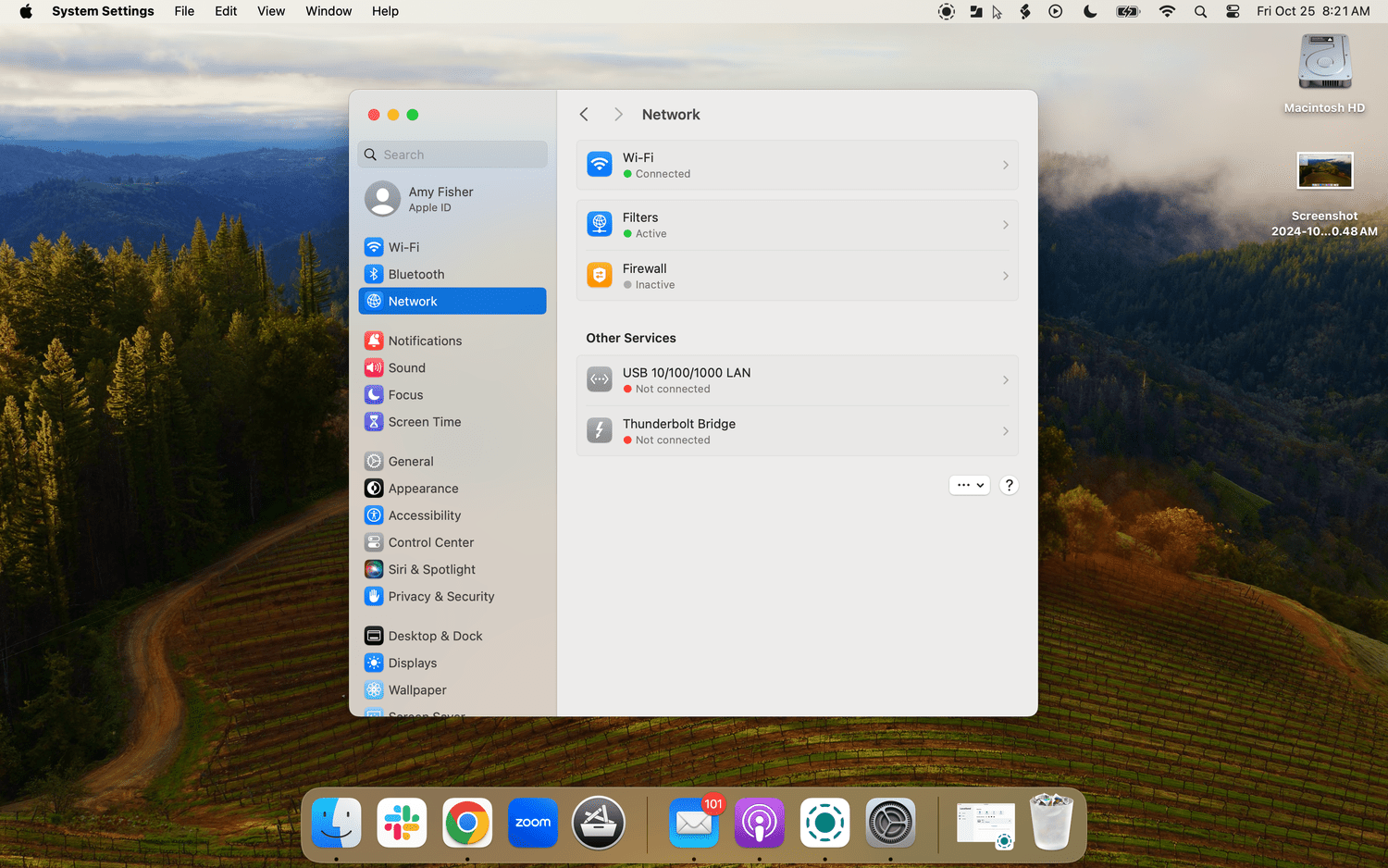
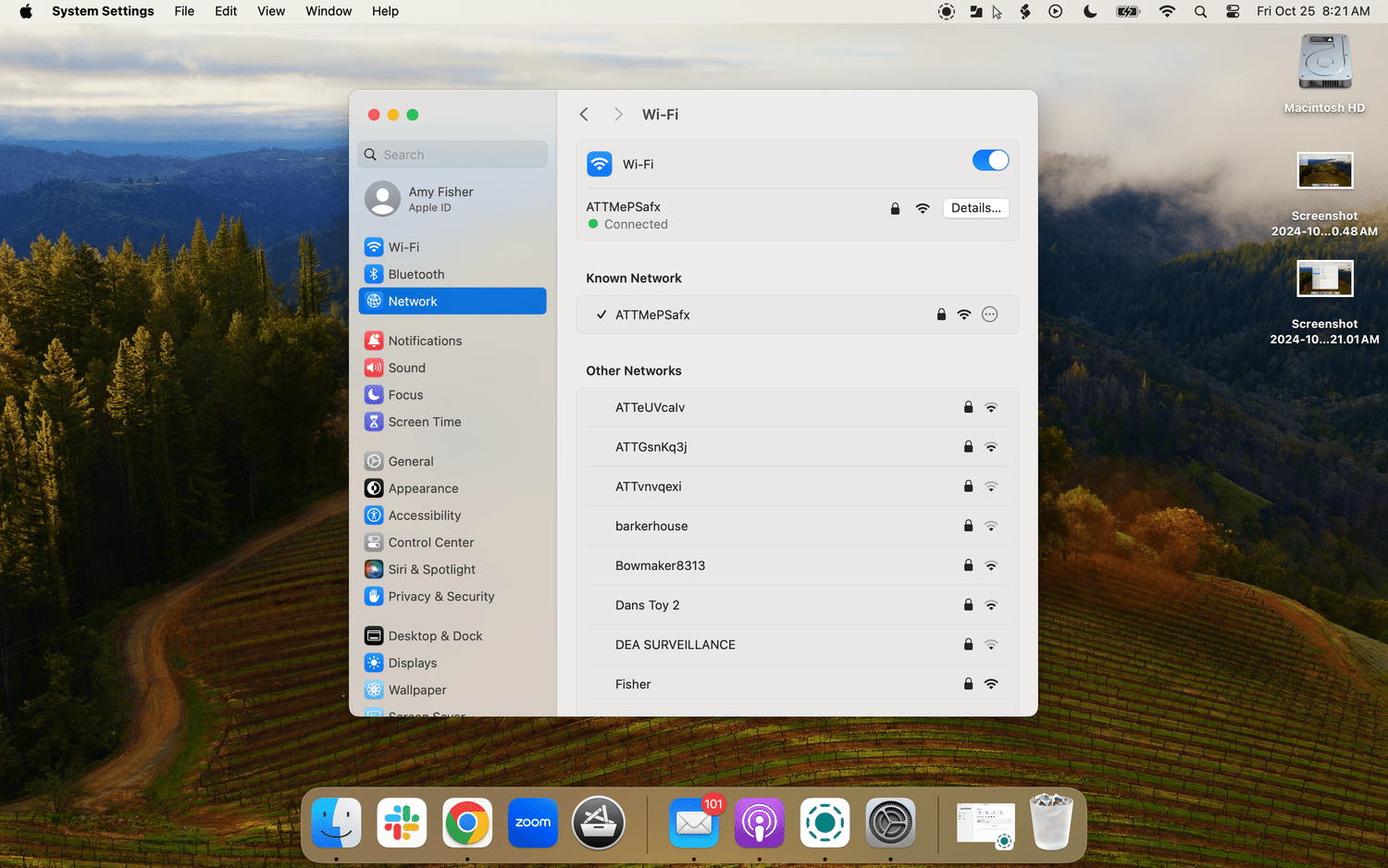
Select Network.
-
Choose your internet connection. For most people, this will be Wi-Fi, but other options, like Ethernet, are available depending on how you're connected.
-
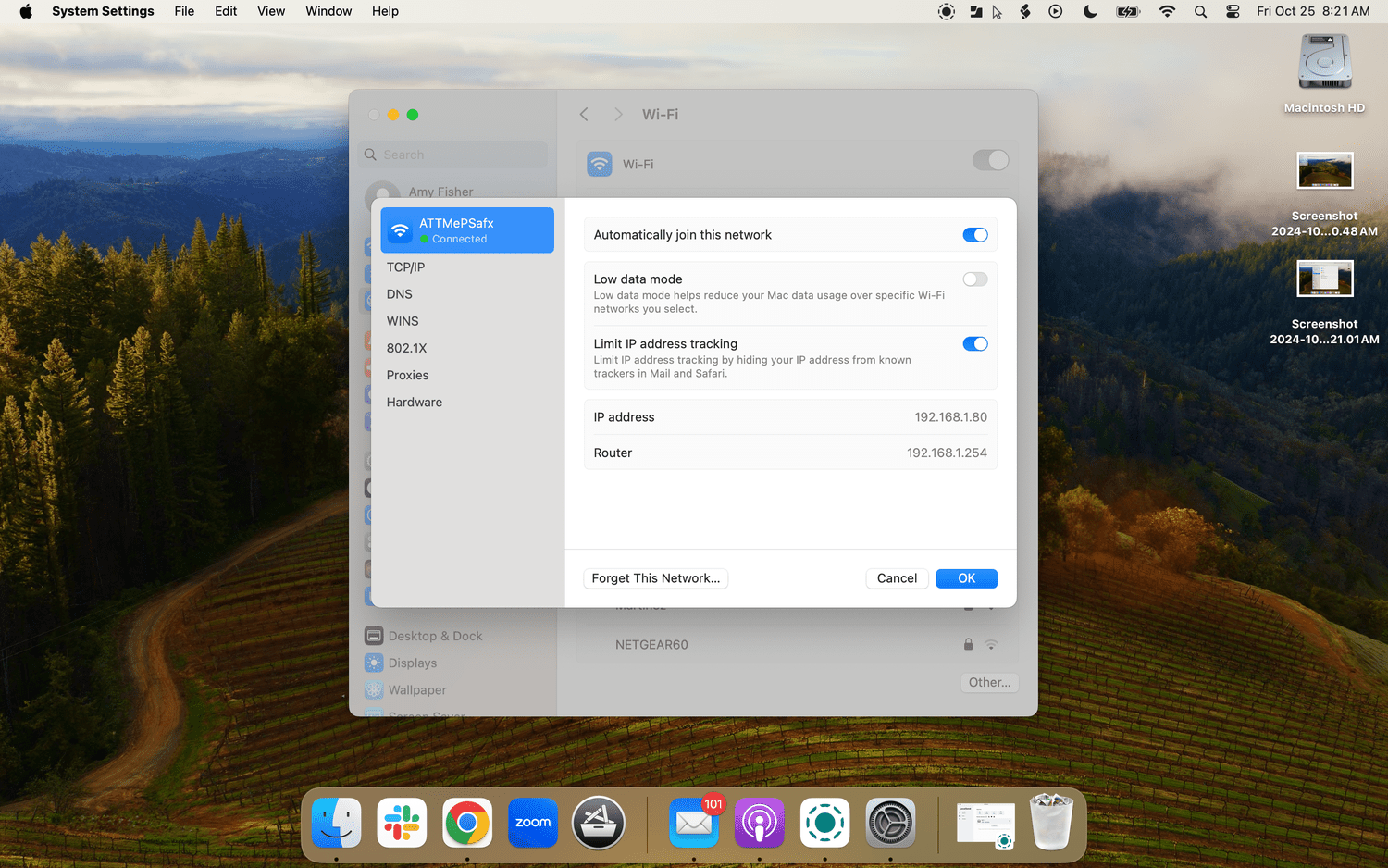
Select Details next to the network.
-
The number next to IP address is your Mac's local IP address.
You can also use Terminal to locate your private IP address by typing in ipconfig getifaddr en0 for a Wi-Fi connection or ipconfig getifaddr en1 for an ethernet connection.
What's the Difference Between a Public and Private IP Address?
A public IP address (also called external IP address) is the ISP-assigned address used for accessing the internet and can apply to a single computer or an entire network. A local/private IP address is used for accessing a local network and is assigned to individual connected devices by your router.
It's possible for devices to share the same private IP address (if they're on different networks), but no two systems will share the same public IP address at the same time.
By default, most devices will be given a dynamic IP address that can change each time it connects to the network. However, devices can be manually assigned a static IP address that will not change.
How to Change Your IP Address FAQ- How do I change my IP address on my Mac?
The simplest way to change your IP address is to unplug your modem or router, wait a few seconds, and then plug it back in-which will reset it and assign you a new IP address. Alternately, open System Settings > Network > connection type > Details > TCP/IP, then select Manually next to Configure IPv4 and type in a new IP address.
- How do I hide my IP address on a Mac?
If you use Safari as your web browser, select Safari in the top-left corner > Preferences > Privacy, then turn on Hide IP address. Other web browsers may or may not let you hide your IP address, but the process will be different (for example, Chrome only hides your IP address with specific extensions).
- How do I find my printer's IP address on my Mac?
Open System Settings > Printers and Scanners > select your printer > Options and Supplies, then find the 12-digit printer IP address under Location.